WhatsApp Business Web: Setup, Features, Limits & API Comparison
Easily utilize WhatsApp Business Web on your browser and desktop with simple steps, from downloading to scanning to streamline your communication.
 by Bulbul Gupta
WhatsApp Business Web is the web-based extension of WhatsApp Business Platform, which allows you to access your business account at web.whatsapp.com by scanning a QR code using your phone.
It mirrors all conversations, contacts, and media in the mobile app, and supports up to 4 connected devices, and does not need an installation on Chrome, Edge, Safari, or Firefox. It is also free, end-to-end encrypted, and is the most basic to use for solopreneurs and small teams with less than 1,000 conversations each month.
Running a business these days can feel like a big task. Right? Suppose you're dealing with customer questions, managing orders, and keeping up with social media. Sometimes, it can get messy, especially with all the different ways your customers contact you.
But don't worry, there's a solution to help keep your work organized that is WhatsApp Business Web. Instead of bouncing between your phone and computer all the time, you can manage all your WhatsApp Business platform chats right from your computer’s browser. It’s a simple way to stay on top of updates and make your customers happy.
With that said, this guide discusses setup on both browser and desktop, key feature, limitations, troubleshooting, and when you should instead upgrade to the WhatsApp Business API.
What is WhatsApp Business Web?
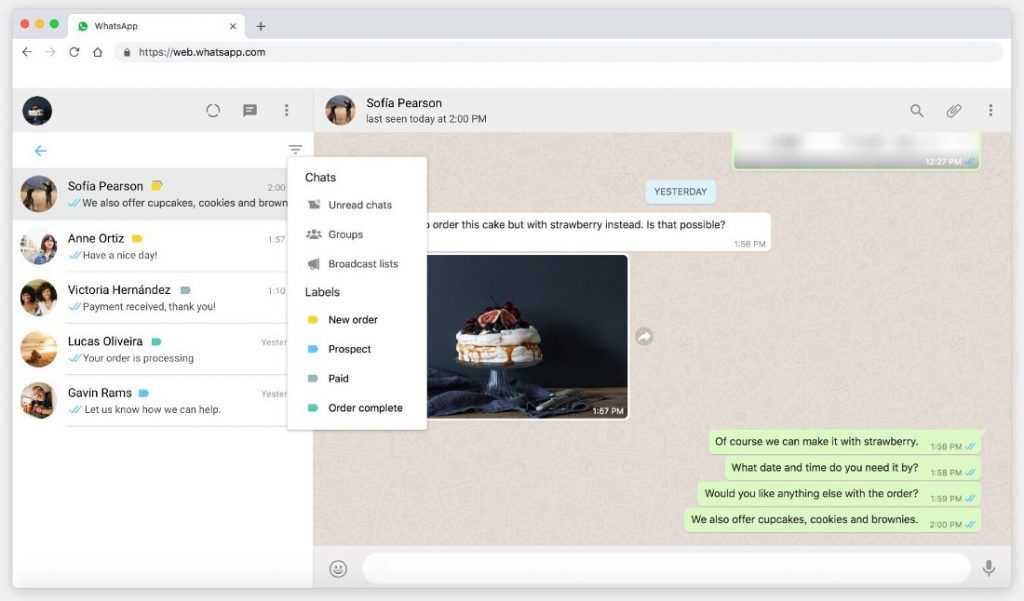
As a companion to the WhatsApp Business phone app, WhatsApp Business Web allows you to access your business WhatsApp account on your computer's web browser.
This enables you to send and receive messages, support you with customer engagement, increase your sales, view your chat history, and take advantage of features such as quick replies, set-away messages, and labels to streamline customer interactions, all conveniently from your desktop.
WhatsApp Business Web vs. WhatsApp Desktop vs. WhatsApp Business App?
WhatsApp is a strong communication channel that comes with robust marketing, conversation, and automation capabilities. So, you need to understand the difference between the Web, Desktop version, and the WhatsApp Business app:
| Feature | WhatsApp Business Web | WhatsApp Desktop | WhatsApp Business App |
|---|---|---|---|
| Platform type | Browser-based (Chrome, Edge, etc.) | Installed software (Windows/macOS) | Mobile app (Android/iOS) |
| Installation required | No | Yes | Yes |
| User interface | Same as desktop/mobile | Same as web | Full-featured mobile UI |
| Messaging | Yes | Yes | Yes |
| Voice & video calls | Limited (mostly 1-on-1) | Full support, including group calls | Full support |
| Notifications | Browser notifications | Native OS notifications | Native mobile notifications |
| Offline access | Very limited | Some cached access | Works with mobile data |
| Multi-device support | Yes | Yes | Yes |
| System integration | Runs in browser tab | Starts with system, taskbar icon | Launched as mobile app |
WhatsApp Business Web vs. WhatsApp Business API: Which one do you need?
WhatsApp Business Web and WhatsApp Business API are two aspects of WhatsApp Business Platform that solve different issues. The Web is free, API is paid and automated. Check out this table to see the differences between the two:
| Factor | WhatsApp Business Web | WhatsApp Business API |
|---|---|---|
| Cost | Free | Pay-per-message |
| Bulk messaging | No | Yes, up to 100K/day |
| Multiple agents | No (single device session) | Yes, unlimited |
| Chatbots/automation | No | Yes |
| CRM integration | No | Yes |
| Setup time | 2 minutes | 1–3 days (via BSP) |
| Best for | Less than 1,000 chats/month | More than 1,000 chats/month, automation needs |
If you're evaluating whether to move beyond WhatsApp Business Web, see our guide on the WhatsApp Business API.
What are the benefits of using WhatsApp Business Web?
Here are some of the key benefits of WhatsApp Business Web over the WhatsApp Business phone app:
Manage conversations on a larger screen
WhatsApp Business Web allows you to use a desktop interface to manage customer chats, as opposed to a small phone screen. It is also much easier to read long conversations, browse media files, and scan through various chats without feeling cramped because of the larger screen. This arrangement comes in particularly useful with businesses that are receiving a large number of messages in a day.
Faster responses with a physical keyboard
It is generally much quicker to type out something on a computer keyboard than it is to reply to a phone. WhatsApp Business Web will help support agents and sales teams respond faster to questions and resolve problems. Fast responses make the conversations easy and enhance the overall customer experience.
Easy multitasking while messaging customers
Using WhatsApp Business Web on a desktop allows you to switch between browser tabs, WhatsApp CRM platforms, spreadsheets, and internal applications without leaving the chat window. It is so easy to look up order details, check on customer info, or get in touch with other teammates during customer responses.
Better collaboration during the support process
Customer service agents usually have to follow up with their colleagues in problem-solving. It is more convenient on a desktop to share screens, access the internal resources, or invite another teammate into a support call. This accelerates the process of solving problems and improving customer satisfaction.
Organize customer chats with labels
Labels will allow you to filter conversations based on status or type of customer. You will be able to mark chats as new leads or order completed. Organizing customer conversations keeps the continuous communications going and managing customer relations easier.
Keep chats synced across devices
WhatsApp Business Web maintains a conversation sync between your phone and the web platform. The desktop messages appear immediately on your mobile and vice versa. That allows you to switch between devices without losing the context and essential customer communication.
Key features of WhatsApp Business Web for businesses
Apart from the bigger screen, WhatsApp Business Web provides crucial business features so you can keep conversing with customers while managing your every activity:
Keep track of conversations
WhatsApp Business Web syncs the conversations across devices; for example, messages sent via your phone will be visible in the web version and vice versa. This way, you can stay up to date with a customer using the complete messaging history.
On top of messages, shared images and documents are also synced to WhatsApp Business Web. Sales reps can easily take over a conversation by understanding what was previously shared with customers to keep the conversation going without needing to ask repetitive information.
The same principle applies to your product catalog because high-quality visuals are just as important. Learning proper ecommerce image optimization techniques ensures your product photos look professional and drive more sales.
Message deliverability
Similar to the WhatsApp app, the WhatsApp Business Web shows the deliverability details for a message, which includes the “Sent”, “Delivered”, and “Read” indicators.
These read receipts let you know the status of your last message and figure out customer engagement to plan your future interactions.
Quick lookup
Suppose you have been talking with a customer for a long time and want to look up a particular interaction from the prolonged conversation history. Scrolling back to that specific chat message can take a long time.
Fortunately, WhatsApp Business Web lets you look up messages by searching for terms or names of customers to find interactions effortlessly.
Past conversations
As I said, having a complete record of previous conversations allows your reps to better serve customers. With WhatsApp Business Web, you get all the details regarding old conversations like messages, images, and files within the chat window.
Apart from enhancing customer engagement, this data helps you better understand your customers so you can personalize future interactions to drive improved results.
Prompt responses
Although you have to set up quick responses using the WhatsApp Business app, after they are ready, you can send them from the web version as well. These prompt replies allow you to lower the wait time for customers, along with ensuring they receive correct information that resonates with their interests.
Limitations of the WhatsApp Business Web
Although the WhatsApp Business App comes with numerous advantages, it is not the perfect platform. That said, below are some of its limitations that you must consider when using it to manage your outreach:
Requires an initial phone connection
In order to use WhatsApp Business Web, you need to connect the Web to your phone by scanning a QR code. When your phone is not available, you are not able to tap into the account on the web. This makes it slightly more rigid to access the web version.
Limited calling functionality
The web app does not offer voice and video calling as the mobile one. WhatsApp Business Web is less effective for you if you depend heavily on calls to get rapid assistance or discuss the situation with clients.
Fewer mobile-specific features
It can be that some functions that are available on the phone application are not immediately visible on the web version or are completely absent. Since the web reflects the mobile application, new features are first introduced on the phone with their implementation on the browser coming afterwards.
Notifications depend on the browser settings
WhatsApp Business Web message alerts are based on the notification settings of your browser. When notifications are disabled in your browser or operating system, you might not see the messages coming in as long as you do not keep the tab open and visible.
Risk of session timeouts
The WhatsApp Business Web sessions may lose connection in case of a browser refresh, or inactivity. Once that occurs, you may need to reconnect or relink your device, which may discontinue ongoing customer conversations.
How many devices can you link to WhatsApp Business Web?
WhatsApp allows up to 4 linked devices per account, plus your primary phone. This means one business account can be active on a laptop, a tablet, a second computer, and a desktop simultaneously, but they all share the same inbox.
If multiple agents need to respond as themselves with separate inboxes, WhatsApp Business Web cannot support this. For this, you’ll need access to the WhatsApp Business API.
How to use WhatsApp Business Web in a browser?
Here is how you can use WhatsApp Business Web in your browser faster:
Open a web browser
You can use any commonly used web browser such as Chrome, Firefox, Opera, Safari, or Edge, to access WhatsApp Business Web.
Go to WhatsApp Web
Now, paste “web.whatsapp.com” into the address bar of your chosen web browser, and hit Enter.
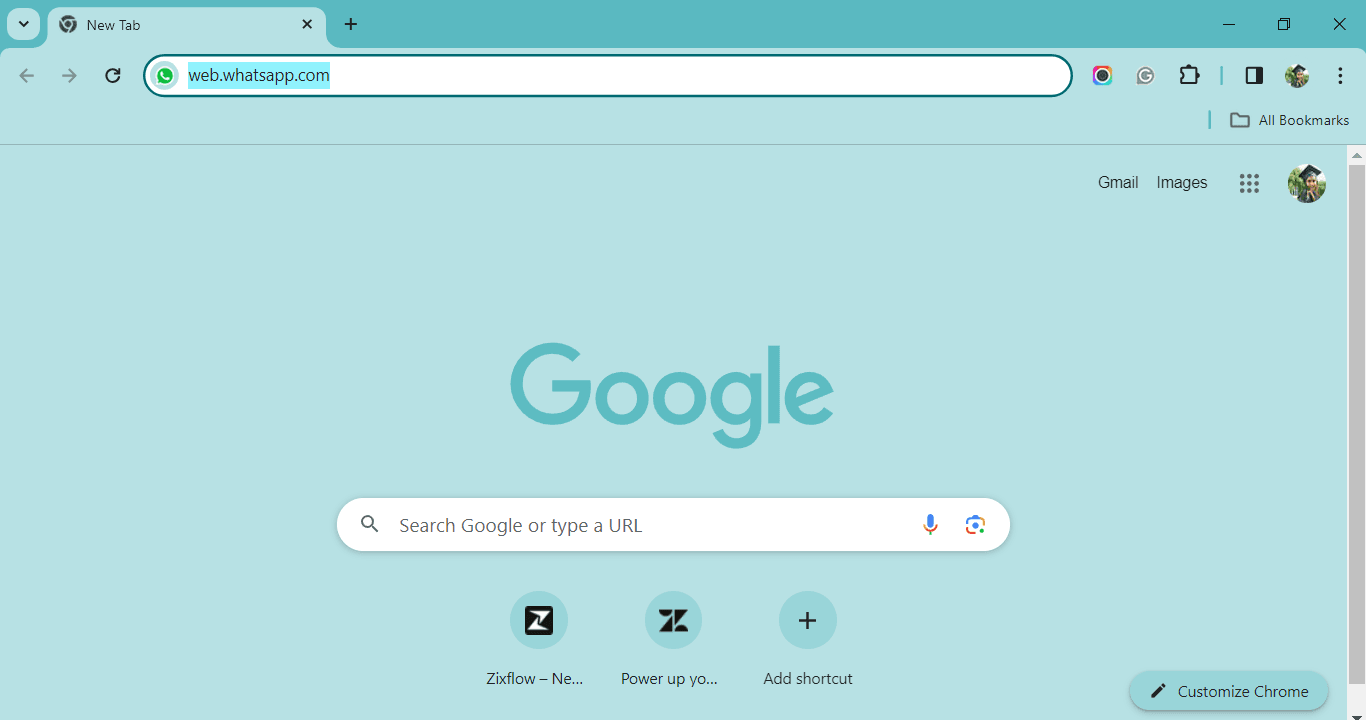
This will take you to the WhatsApp Web page where you'll see a QR code displayed.
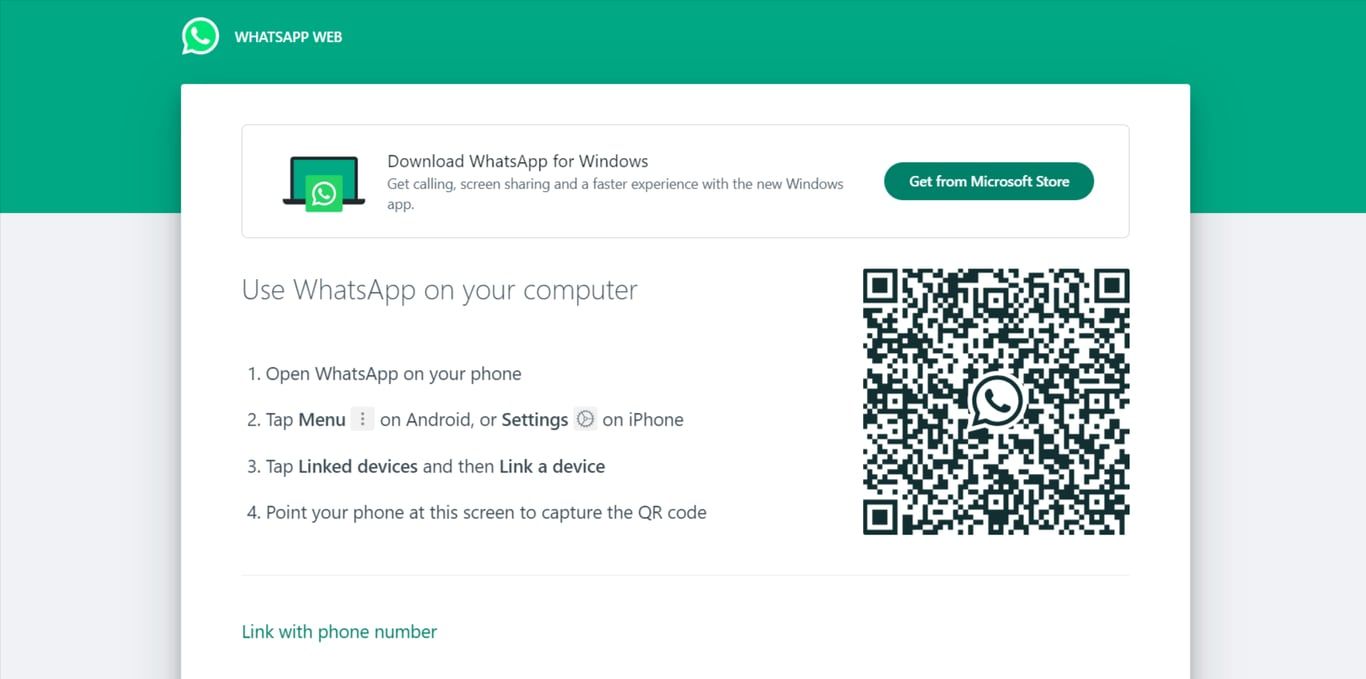
Launch WhatsApp Business on your phone
Setup your WhatsApp Business account properly on your phone then open the WhatsApp Business app on your smartphone. You can also convert your personal account into WhatsApp Business if you wish to continue with the same number.
Access linked devices
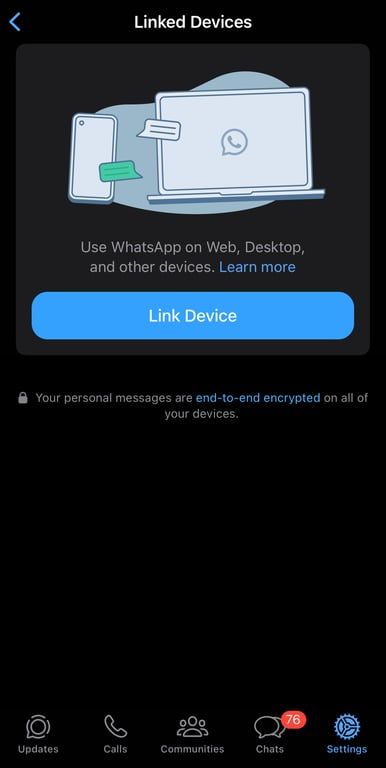
Depending on your phone type, access the linked devices option. On an iPhone, navigate to Settings within WhatsApp Business app. On Android, tap the three dots in the top right corner to access the menu.
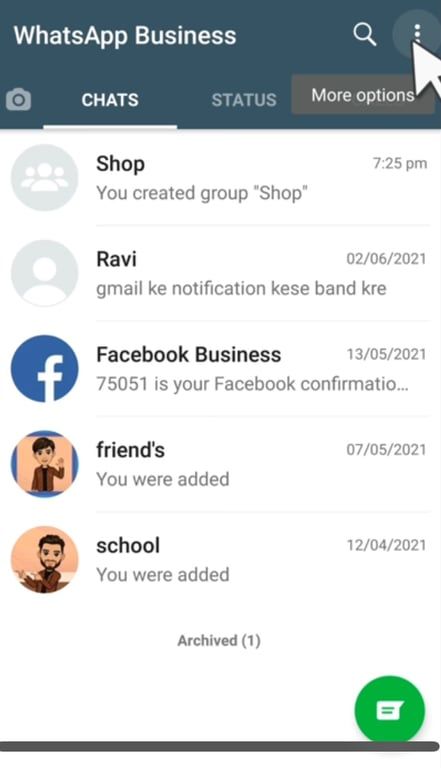
Link a Device
Within the settings, select “WhatsApp Web” or “Linked Devices” on Android or iPhone.
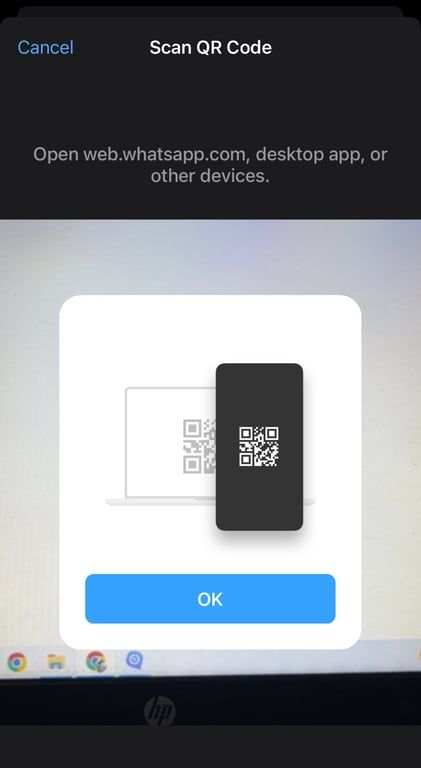
Scan the QR Code
Activate your phone's camera to scan the QR code displayed on your computer screen. Position your phone so the QR code fits within the camera viewfinder.
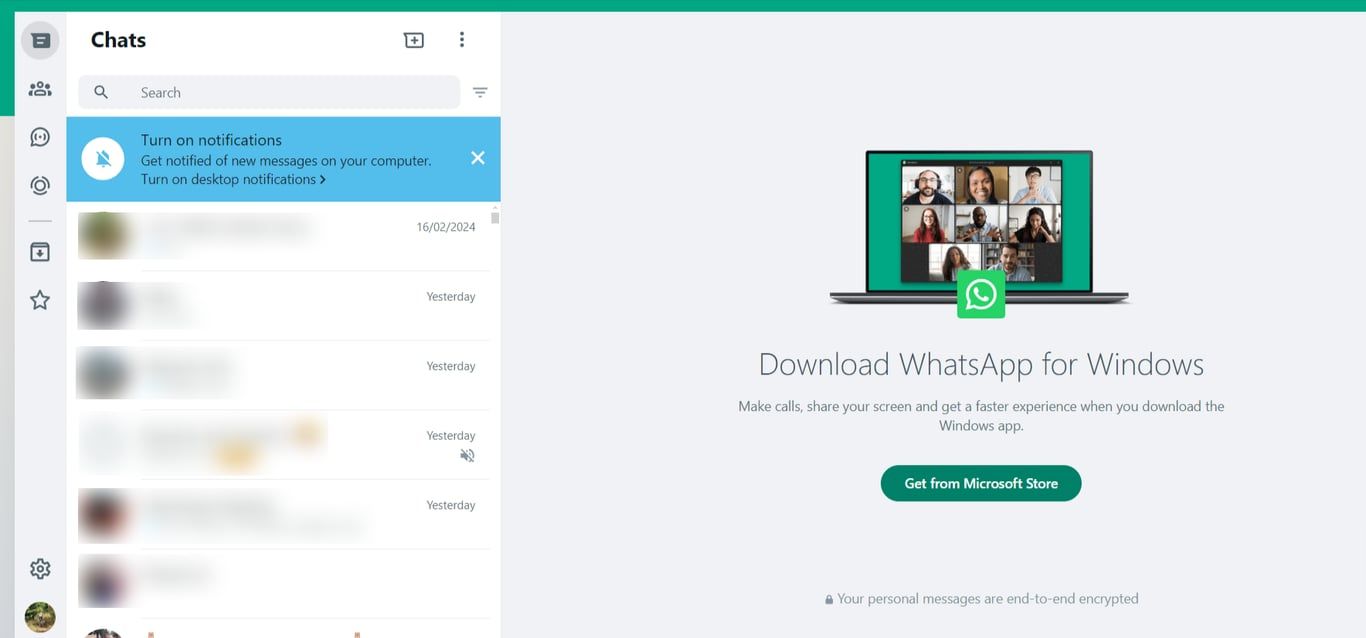
After scanning the QR code, your WhatsApp Business conversations and tools will become available on your computer's web browser. From there, you can conveniently engage with your clients directly through WhatsApp Business on your computer.
Now, let’s understand how to use WhatsApp Business Web on a desktop!
Are you looking for the right platform that boosts your WhatsApp Business needs?
Begin your journey today with Zixflow, a premier choice that provides intuitive functionalities, customized to meet your specific needs for WhatsApp marketing
Login NowHow to use the WhatsApp Business Web App on Desktop?
Here is how you can use the Web WhatsApp Business Desktop App for Windows and Mac operating systems:
Download the WhatsApp Desktop app
This step involves getting the WhatsApp Desktop app specifically designed for your computer's operating system.
If you are a Windows user open the Microsoft Store app pre-installed on your Windows. Search for “WhatsApp” and click “Get” to download and install the app.
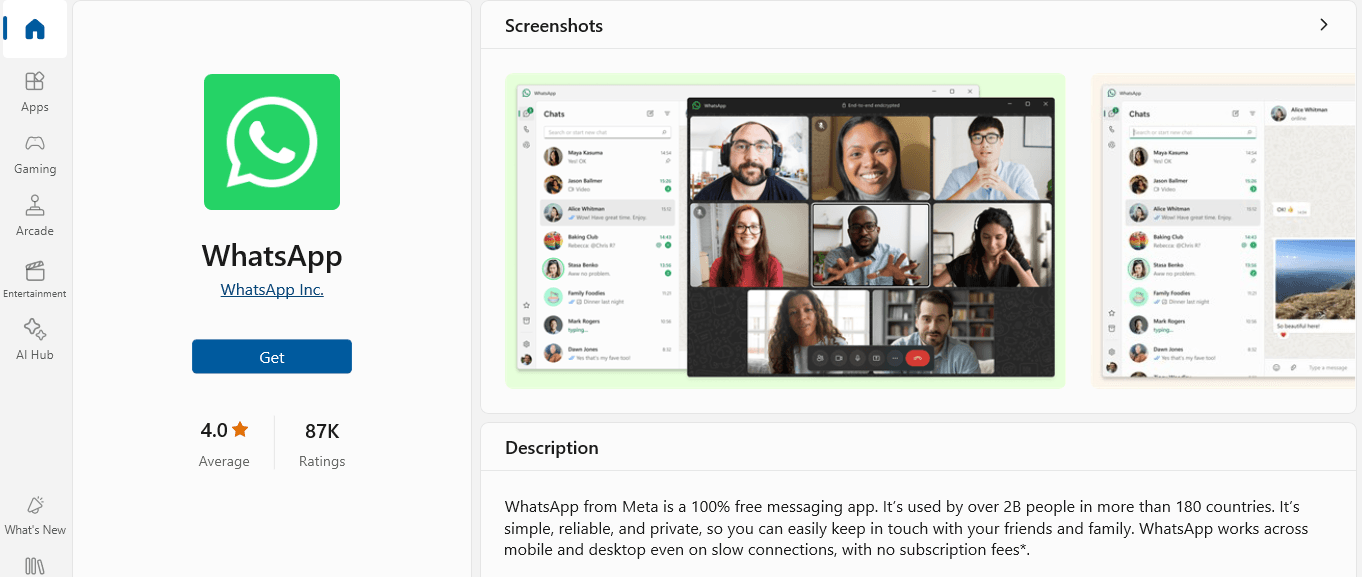
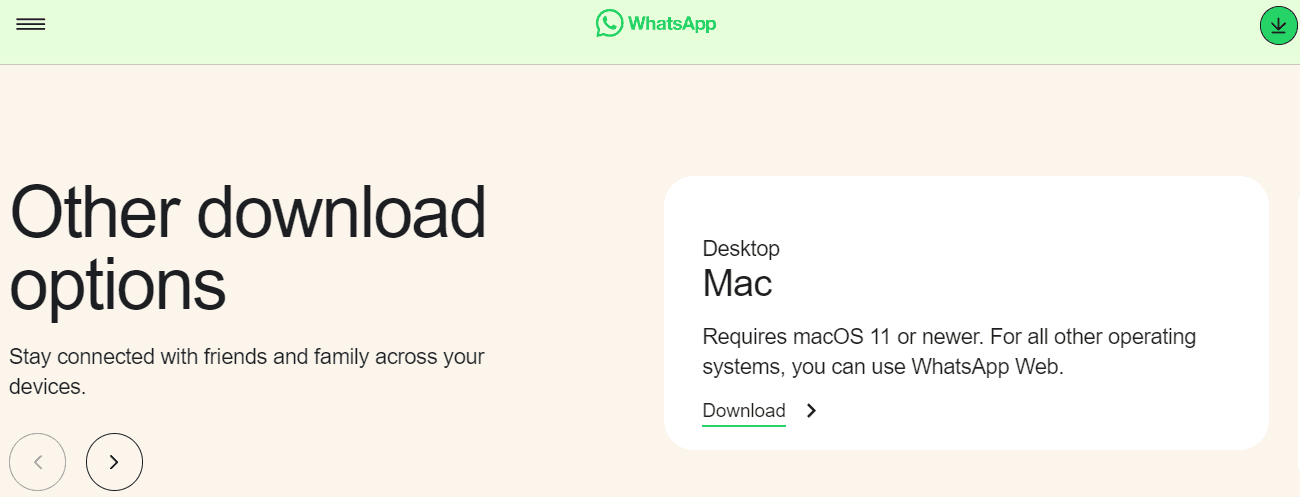
But If you are a Mac user go to the official WhatsApp website. There, you'll find a download section for Mac devices. Click the download button and follow the on-screen instructions to install the app.
Open the WhatsApp Business app on your phone
This ensures you have the WhatsApp Business app running on the phone number you want to use for your business communication. Make sure you're logged in to the correct account.
Access settings in the WhatsApp Business app
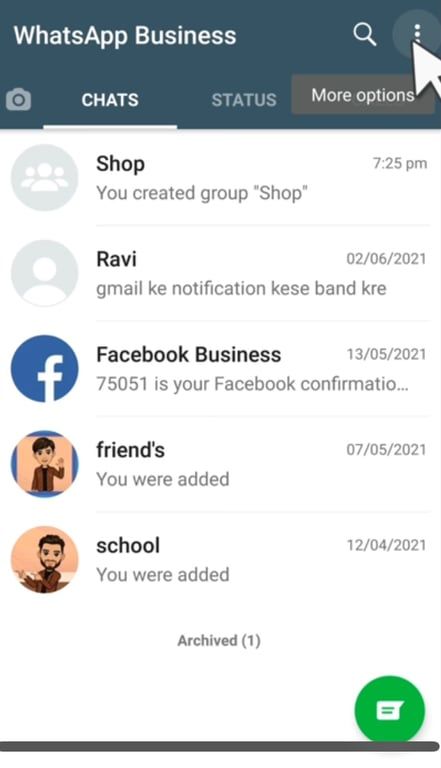
If you have an Android device then tap the three dots but if you are an iPhone user then go to the settings option located in the bottom right corner of the app to access its menu.
Select the “Linked devices” (or “WhatsApp Web/Desktop”)
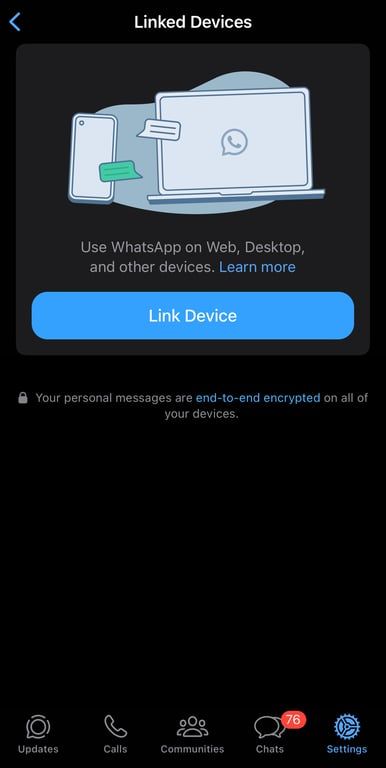
Within the menu you opened in step 3, look for an option labeled “Linked devices” or “WhatsApp Web/Desktop”. This section deals with connecting your phone's WhatsApp Business account to other devices like your computer.
Tap “Link a Device”
Selecting “Link a Device” initiates the process of linking your phone to the WhatsApp Desktop app. Your phone’s camera will automatically activate, preparing to scan a QR code.
Scan the QR code on your computer screen
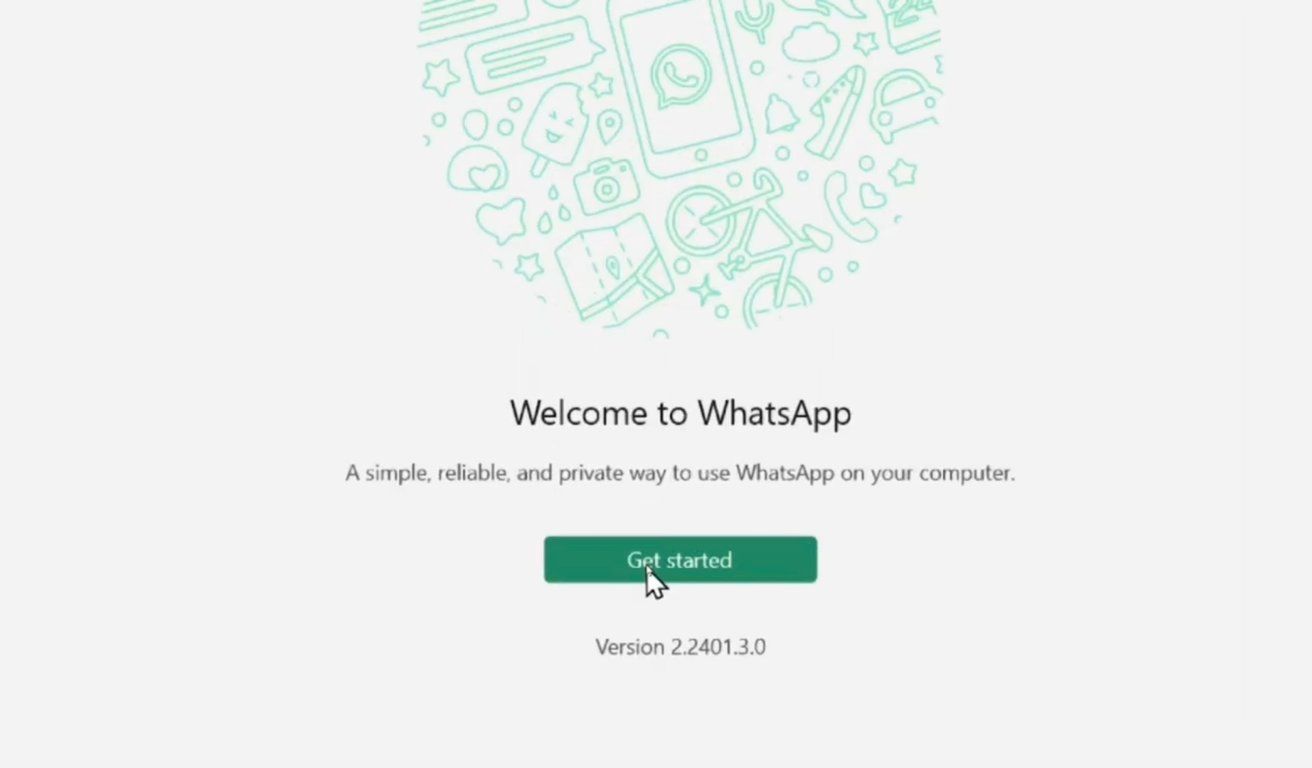
Open the WhatsApp Desktop app you downloaded earlier on your computer. Select the “get started” option then you’ll see a QR code displayed on the main screen. This unique code acts like a key that allows your phone to connect to your computer’s WhatsApp Desktop app.
Simply point your phone’s camera at the QR code on your computer screen, lining it up within the frame displayed on your phone.
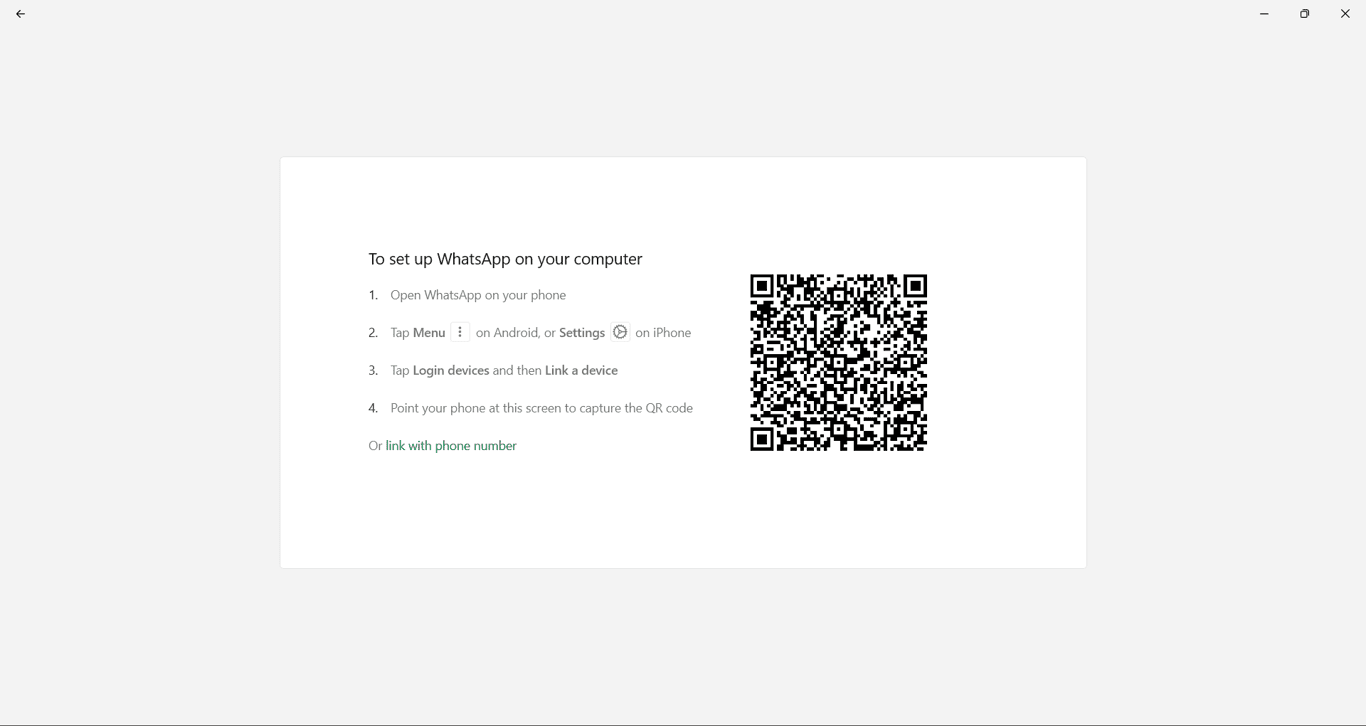
Access WhatsApp Business on your desktop
Once your phone’s camera successfully scans the QR code, the connection will be established. Your WhatsApp Business chats, contacts, and message history will then be displayed on the WhatsApp Desktop app on your computer.
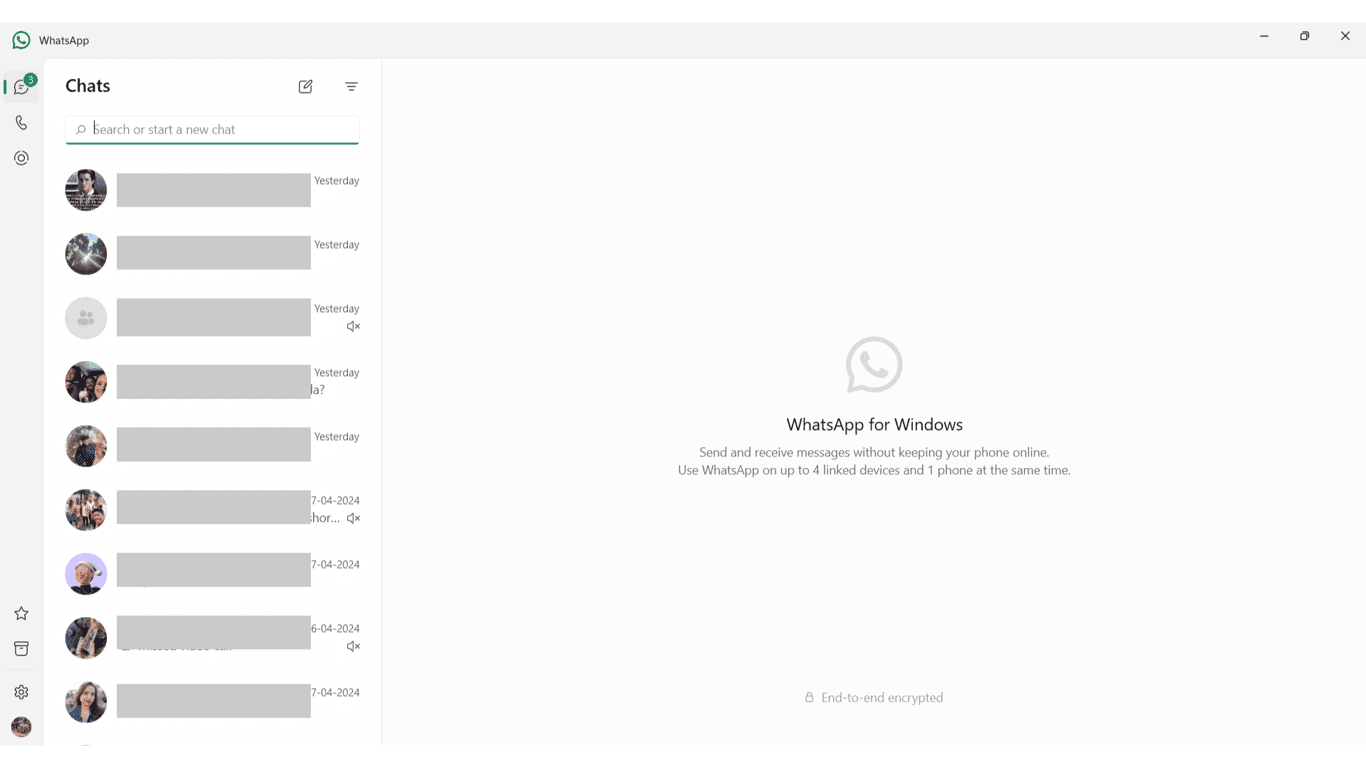
You can now send and receive messages, share files, and manage your business communication directly from your computer’s larger screen.
Take your WhatsApp marketing to the next level using our complimentary software
Just enter recipient details, select from our diverse range of message templates, and start customer interaction effortlessly
Book a DemoSystem requirements for running WhatApp Business Web
WhatsApp Business Web can be run on every browser, such as Chrome, Edge, Opera, and Firefox.
Furthermore, if you are having any issues setting up the WhatsApp Business Web, you can check below the common troubleshooting steps:
- Make sure your mobile is connected to the internet when scanning the QR code
- If login problems occurs, clear the browser cache on your PC or laptop
- Ensure that you are logged in the correct WhatsApp Business Account on the mobile for syncing chats
Troubleshooting common WhatsApp Business Web issues
WhatsApp Business Web is compatible with all browsers, including Chrome, Edge, Opera, and Firefox. Moreover, in case you have any troubles with setting up the WhatsApp Business Web, you can refer to the following list of common troubleshooting issues:
- QR code not scanning: Make sure your camera is on on your phone and your QR code on the screen is not blurred (zoom out if it is)
- Phone not connected error: To use WhatsApp Business Web, your phone must always be connected to the internet. It is not a standalone application and requires your phone for logging in
- Syncing between phone and web: Refresh the web page, and on your phone, choose Settings → Linked Devices and tap your web session to synchronize
- Session is expiring: The WhatsApp Web sessions last up to 14 days of inactivity. In order to remain logged in, enable the “Keep Me Signed in” option during scanning the QR code
- I can't access WhatsApp Web at work: Certain corporate firewalls block web.whatsapp.com. Get in touch with your IT team or use an alternate network
- Notifications not showing: Chrome/Edge users have to turn notifications on both in the browser settings and the WhatsApp Web settings icon in the top-left
- Photos/videos fail to load: Clear browser history and turn off ad blockers for web.whatsapp.com.
- Phone call in progress messages: Voice/video calls are restricted on the Web version. In case you rely on calls, use the Desktop version
Is the WhatsApp Business Web secured?
Ever since its release, WhatsApp has prided itself on its security and end-to-end encryption for all its incoming and outgoing chats. The same standard of safety is carried to the Web version of WhatsApp.
In addition to that, WhatsApp implemented Code Verify to its Web platform, ensuring that no external script running on your browser can interfere with your messaging. If the system detects any unusual activity with WhatsApp’s code, it immediately informs you about the same.
What are the pros and cons of the WhatsApp Business Web?
As you must have seen from this guide, getting started with WhatsApp Business Web is quite simple. However, that is only one of its strengths. If you are still unsure as to whether it is the right fit for your business conversations, below are some of its pros and cons to consider:
Pros
- WhatsApp Business Web is free to use
- You get simple messaging automation capabilities
- You don’t have to create a new WhatsApp Business account for the Web version. Use the existing one you are using on the Business App
Cons
- Unlike the WhatsApp Business API, the Web version doesn’t have advanced automation functionality
- WhatsApp Business Web doesn’t include any analytical capabilities
- Similar to the WhatsApp Business App, the Web also lacks bulk messaging features
Who should use WhatsApp Business Web?
At a glance, WhatsApp Business Web might look like a perfect option for managing your WhatsApp conversations on a computer. However, in terms of features, your messaging requirements, and business size, you would be better off choosing a different version from the WhatsApp Business Platform.
I would suggest the WhatsApp Business Web for the following scenarios:
- Solopreneurs running a small business where the number of customers and conversations is easy to manage
- If you want just a WhatsApp version for handling basic business communication, like resolving common queries or sending one-way updates
Apart from these situations, the following are some scenarios where WhatsApp Business Web may not be a good choice for your business:
- If you have large teams and want advanced management capabilities
- If you want to set up WhatsApp automation, then WhatsApp Business API is the better option
- It doesn’t support integration with external tools such as customer data platforms or automation tools
Effortlessly set up WhatsApp Business Web to improve your business communication
So that’s it! You can now utilize WhatsApp Business Web on your browser or desktop to streamline your communication and task management. Also, you can reply to messages, share photos, and manage everything with a larger screen.
But, if you're also looking to take your WhatsApp Business to the next level, you must check out Zixflow. It helps you multitask better, keeps your chats neat, and streamlines your business operations.
So, create your Zixflow free account to transform all your WhatsApp needs from a messaging tool to a powerful customer engagement platform.
Frequently asked questions about WhatsApp Business Web
How to access the WhatsApp Business Web?
To access the web version of WhatsApp, head to web.whatsapp.com and scan the QR code from the WhatsApp app from your mobile phone.
Can I use the WhatsApp Business Web for your personal use?
WhatsApp Web can be used with your personal account. However, to leverage the business capabilities of WhatsApp, you need to have a WhatsApp Business Account and log in to the WhatsApp Business Web.
Do you need a Business Account to use the Web version?
Yes, as I mentioned above, you need a WhatsApp Business Account ready on your mobile device before you want to log into the Web and the Desktop version of WhatsApp.
Is it safe to use the WhatsApp Business Web?
Similar to the WhatsApp Business App, the messages are end-to-end encryption to make sure your conversations are safe from external influences.
Plus, the Code Verify feature automatically monitors that you are using the official version of the WhatsApp Web, making sure your communications are going through the right channel.
How many devices can I link to WhatsApp Business Web?
You may connect up to 4 devices and your main phone to a single WhatsApp Business account.
Can multiple agents use WhatsApp Business Web at the same time?
Not with separate inboxes. The 4 connected devices have a common conversation inbox. To leverage a multi-agent support with individual inboxes, you should have the WhatsApp Business API,
Does WhatsApp Business Web work without my phone?
WhatsApp Business Web requires that your phone is connected to the internet. Your Web session will be disconnected after 14 or more days your phone goes offline.
Can I send bulk messages from WhatsApp Business Web?
No. WhatsApp Business Web does not have bulk messaging. In the phone app, you can make broadcast lists of up to 256 contacts, however, not bulk messaging. To run actual bulk campaigns, you need to use WhatsApp Business API.
Why is WhatsApp Business Web showing a blank screen?
This is generally a browser cache problem. Clear browser history, turn off extensions (particularly ad blockers), and re-open in incognito mode.