WhatsApp Interactive Messages for Businesses
WhatsApp interactive messages make it easier for customers to respond to business messages without typing every reply.
 by Sahil Tyagi
WhatsApp interactive messages are messages with tappable elements, like reply buttons, list menus, call-to-action link buttons, and in-chat forms instead of plain text alone.
When a customer taps an option, WhatsApp sends your system a webhook carrying the unique identifier of the button or row they chose, so you can map future interactions automatically.
There are six types:
- Reply buttons offer up to three options with 20-character labels
- List messages open a menu of up to 10 rows, with 24-character titles and 72-character descriptions
- Call-to-action buttons turn URLs into a labelled button of up to 20 characters
- WhatsApp Flows are multi-step forms with dropdowns and input fields inside the chat
- Product catalog messages let customers browse items in the conversation
- Location & call requests suit physical storefronts
Interactive messages are service messages, so they can only be sent while the 24-hour customer service window is open. Outside that window, only pre-approved templates are allowed.
WhatsApp is used by around 3.3 billion people every month. For a growing share of them, it's the first place they go to message a brand.
However, a busy inbox isn't the same as a conversation that goes somewhere. Customers type half-sentences with incorrect product names. Then they give up the moment a reply asks them to explain too much.
That's where WhatsApp interactive messages come in.
Buttons, lists, and in-chat forms let customers answer with a tap instead of a paragraph. The conversation keeps moving, and you get the required structured data to assist them easily. To send these interactive messages to customers, brands utilize the WhatsApp Business API, which supports various interactive messaging formats, each best suited for a different job.
That being said, this guide covers what each of these types does, where the limits sit, and how to put them to work for your business. So, let's get into it.
What are WhatsApp interactive messages?
WhatsApp interactive messages are messages that carry tappable elements, such as reply buttons, list menus, link buttons, or in-chat forms, instead of plain text alone. When a customer taps an option, WhatsApp sends your system a structured response you can route or log without reading free text.
Businesses send them through the WhatsApp Business Platform, mostly as replies inside an open 24-hour customer service window.
Under the hood, an interactive message is a normal message with one addition, an action block that defines what the customer can tap. It has a body, plus an optional header and footer. When a customer taps, your system receives a webhook. That's an automatic alert carrying the ID of the button or row they chose, not just the label text.
The real difference between an interactive WhatsApp message and a text-only one is control. A plain-text chat depends on whatever customers decide to write. An interactive one narrows the path to the options you have determined.
For the full map of types beyond interactive ones, take a look at our guide on types of WhatsApp messages.
Types of interactive WhatsApp messages
There are six primary WhatsApp interactive message types that you should know about. These are the most common types of interactive messages and handle most of the use cases for a majority of businesses.
Reply buttons
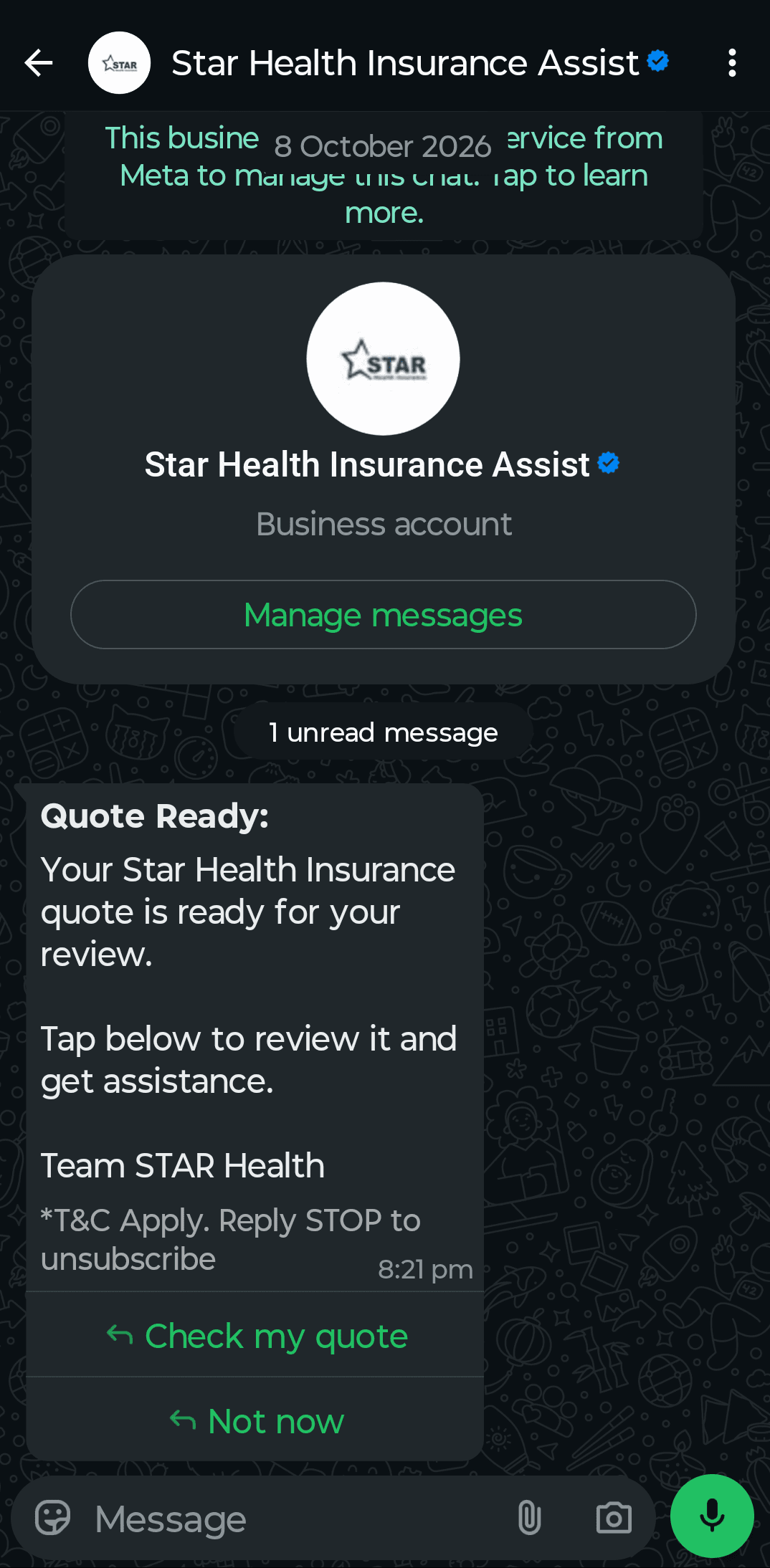
Reply buttons let you offer up to three predefined answers beneath a message. Each label can run to 20 characters and must be unique within the message. The body text can hold up to 1,024 characters.
They are the lightest type of interactive formats, and that makes them the go-to choice for confirmations, quick qualification, and simple routing.
List messages
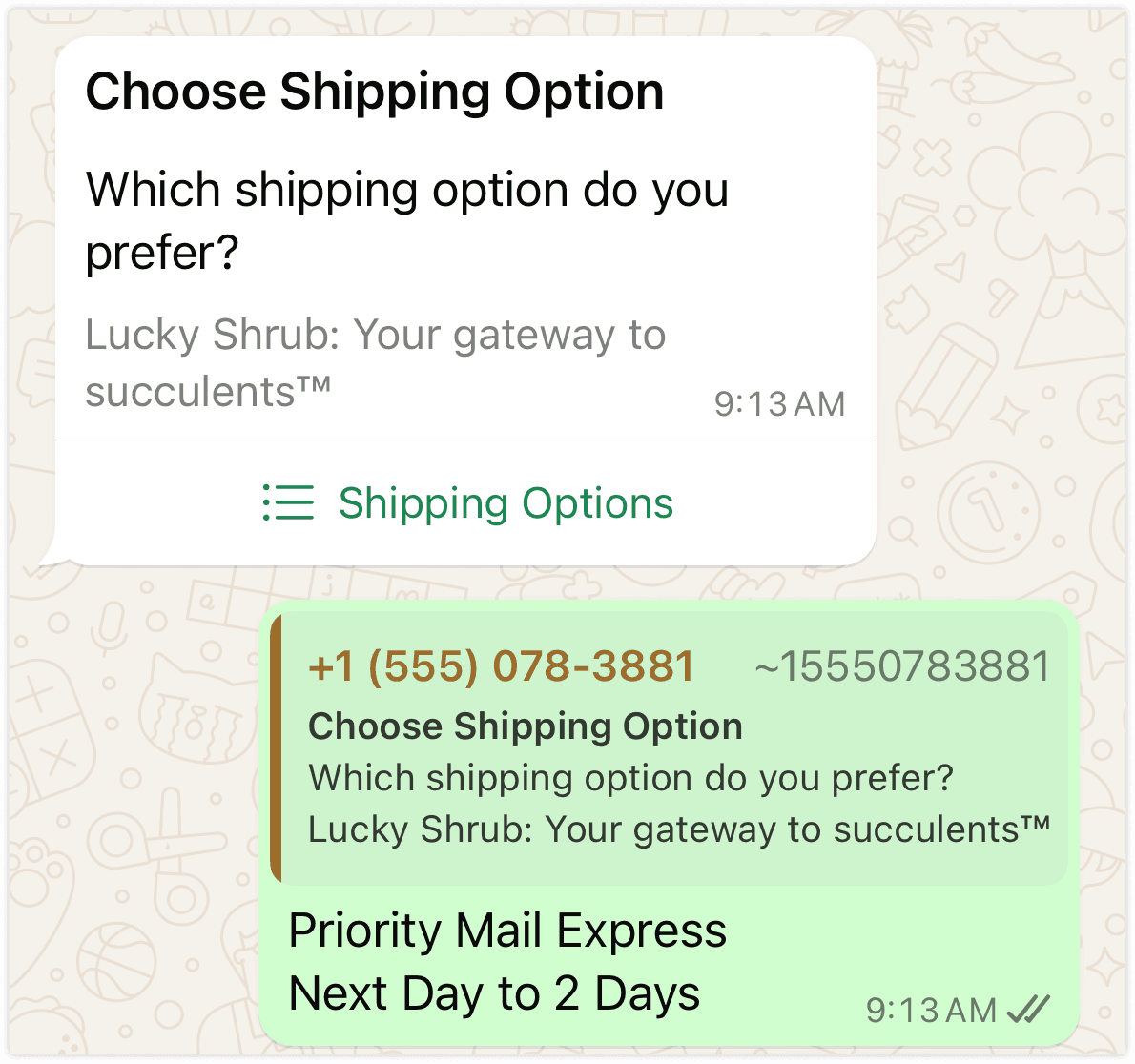
List messages show a single button that opens a menu of choices. That menu can hold up to 10 rows, grouped together for all the sections. The title for each row caps at 24 characters and descriptions at 72. However, the body text can stretch to 4,096 characters.
Lists are what you use when you want to give more than three options to customers. They are best suited for service categories or customer support.
Call-to-action buttons
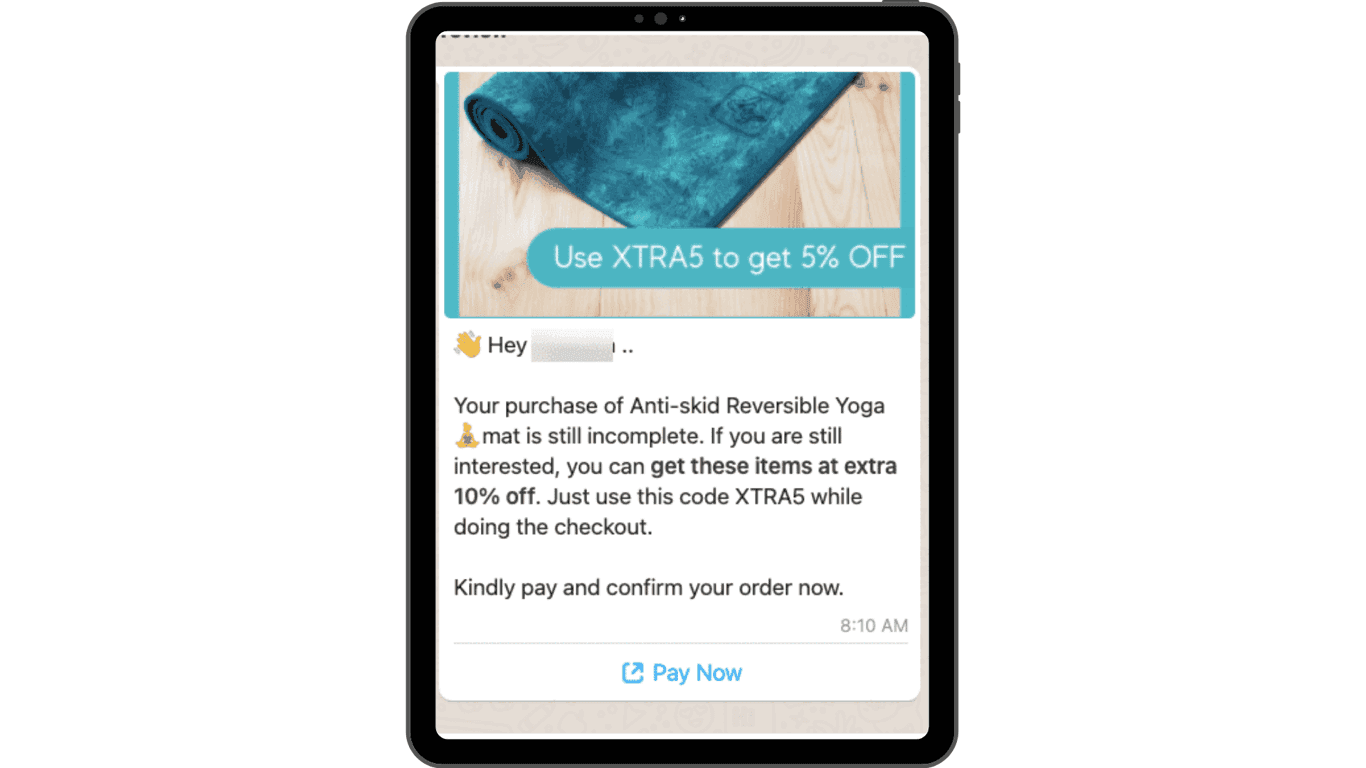
A call-to-action (CTA) button maps a link to a labelled button, so you don't have to paste a long raw URL into the message. Users can be hesitant to tap lengthy or obscure URLs, so this type solves that problem effectively.
The label length is limited to 20 characters, and it is used for redirecting recipients to payment pages, order tracking, and booking pages.
WhatsApp Flows
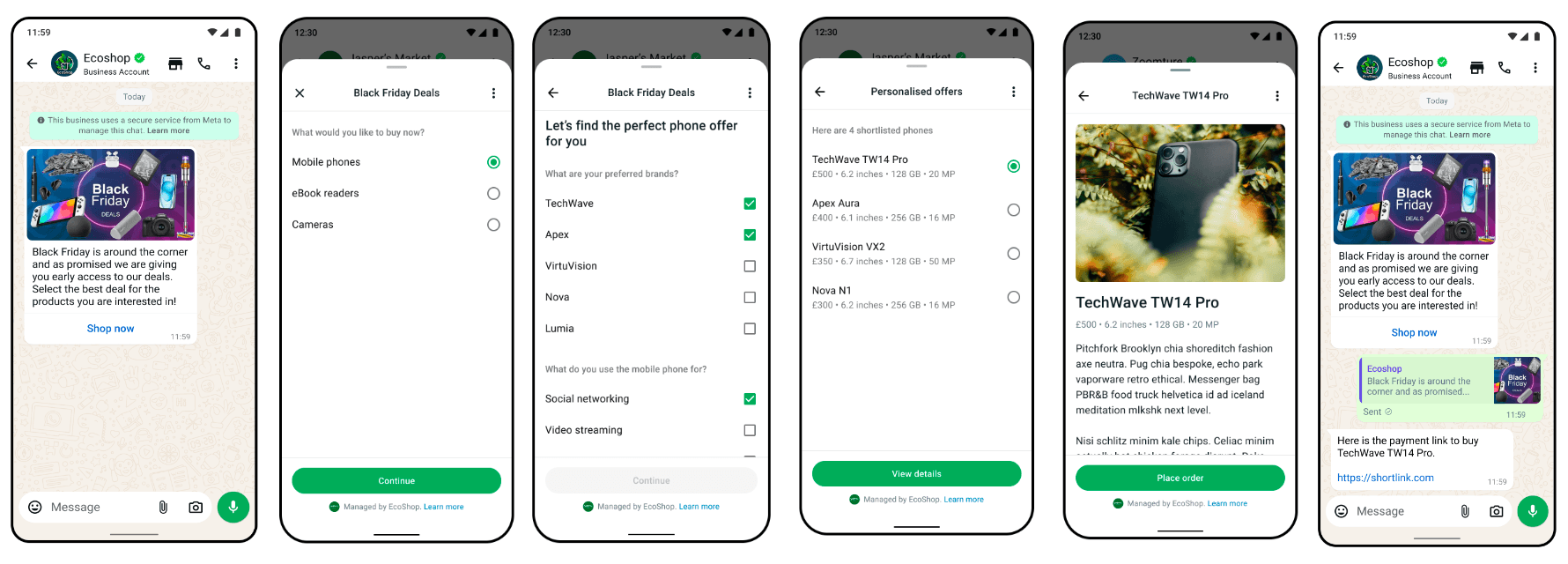
WhatsApp Flows go a step beyond buttons. They open a multi-step experience inside WhatsApp, with dropdown menus and input fields. They are commonly used for booking appointments, browsing products, collecting feedback, and capturing sales leads.
Flows take more effort to build than buttons or lists. You usually have to build them through a WhatsApp API provider that supports this capability. They are the best choice when a task needs more than a couple of inputs.
Product catalog messages
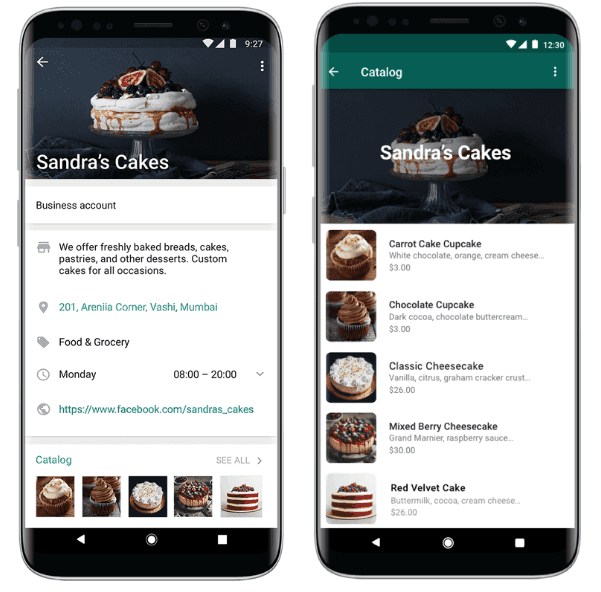
WhatsApp catalog messages are interactive, commercial-driven types that work like a product catalog but within the WhatsApp chat interface. Customers can browse and pick items without leaving the chat, making it an efficient way to convert them without sending them to your website or external locations.
Location & call requests
These are two lesser-used types that are designed for physical storefronts rather than e-commerce brands.
A location request message shows body text and a send-location button. The button opens WhatsApp's location-sharing screen, which helps with deliveries and store lookups. A voice call message adds a button that lets the customer start a WhatsApp call with you.
How to use WhatsApp interactive messages for streamlined business interactions?
Now that you know what each format can do, let's look at some of the strategies to effectively put WhatsApp interactive messages to work, in roughly the order most companies adopt them:
Qualify new conversations using reply buttons
The first reply a customer gets after reaching out sets the tone for the whole chat. Swap the generic "How can we help?" for a short message with up to three reply buttons. Let those buttons qualify leads by intent, such as sales, order support, or something else.
Open-ended greetings make customers explain themselves in their own words. Your team then has to read and reassign each chat. Buttons do that triage before an agent is involved. On top of that, each tap sends your system a button ID, so routing can run on exact values instead of keyword guesses.
A small detail to keep in mind here is to name your button IDs descriptively so they are easier to identify later, such as "order_support" or "new_enquiry," instead of "btn1." Meta lets you set the ID to any string up to 256 characters, and those IDs appear in your webhook data and reports. Readable IDs make every future analysis faster.
Start by listing the three reasons customers contact you most. A week of inbox history will show you. Based on that, write one button per reason, using labels of two or three words. Then map each button ID to three actions:
- Tag the contact with the chosen reason
- Assign the chat to the relevant rep
- Send the matching follow-up message
Keep one plain-text escape route in the body, such as "Or type your question, and an agent will reply." That way, no one is stuck with a menu that doesn't fit their problem. After two weeks, check the tap split and replace any button that almost nobody uses.
The reason WhatsApp reply buttons are overlooked is that brands treat the greeting as an opportunity for marketing. Keep the body to one or two lines, and save promotions for later in the conversation. A greeting that reads like an ad most likely gets ignored.
Let Customers Answer with a Tap.
Design personalized WhatsApp interactive messages to drive customer engagement with a quick-reply button.
Build your TemplatesReplace text walls with list messages
A WhatsApp list message shows one button that opens a menu of up to 10 options. It's the right format once your choices no longer fit in three reply buttons.
Text menus, such as "Reply 1 for billing, 2 for returns," rely on customers typing the right number. They also bury every option in one block of text, but a list keeps the chat clean.
Grouping your options into sections that mirror how customers think makes it easy for you to interact with them. Lists labeled "Orders," "Payments," and "Account" serve people better than complex names. Keep titles short enough to read at a glance and use the description line to answer the question people would otherwise ask, like a delivery timeline or an eligibility rule.
The limit to these messages is 10 rows across all sections, and a template that uses every row usually signals a menu that needs trimming. Put the most common option first and finish with an "Other" row that hands over to a human. Then connect each row ID to the same kind of routing or answer flow you built for reply buttons.
Similar to buttons, review the list messages against real chat history every month. Look at which options get picked and which get ignored. Then merge or rename the quiet ones. A list holds only 10 rows, so every row you keep is one you can't give to something more useful.
Turn raw URLs into clear CTAs
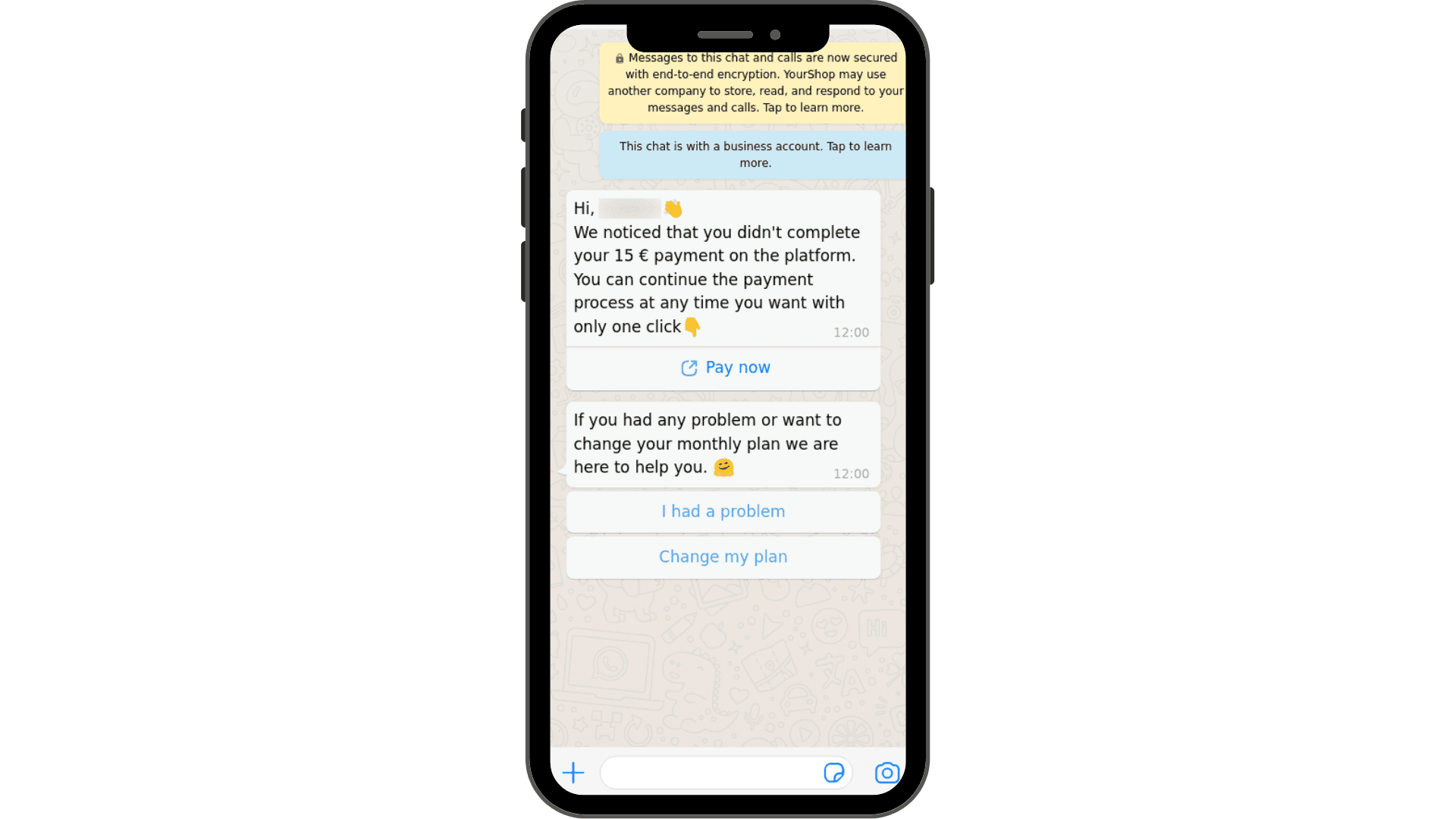
A call-to-action URL button attaches a link to a labelled button, so the customer taps "Pay now" instead of a long string of characters. It's the simplest upgrade you can make to any message that currently ends with a link.
Meta points out that WhatsApp users can be hesitant to tap raw URLs with lengthy or obscure strings. A button with a clear label tells people exactly what will happen and keeps your message readable. Plus, you can keep tracking parameters in the URL without showing them in the chat. Add one line of body text that says what the link does and why the customer needs it now.
One good practice is to send the CTA messages while the customer service window is open, for example, right after someone selects an option from a list. In case of outbound messages outside the window, use a template with a URL button instead.
Keep one limit in mind, the link opens in the device's default browser, so the customer leaves WhatsApp the moment they tap. That makes the landing page part of your conversation experience, so it needs to load quickly on mobile and carry on from where the WhatsApp conversation stopped.
Remember to test the label before you scale it. "Pay now" and "View invoice" describe different intentions. The one that matches what the customer expects at that moment will get more taps. With only 20 characters to work with, every word has to earn its place. You can also include a header as an image, video, document, or text. That way, a payment link can sit directly under the invoice it refers to.
The best use cases for CTA messages are the ones where a link is unavoidable, such as payment pages, order tracking, and booking pages.
Check out our guide on WhatsApp payments if you’re collecting payments on WhatsApp.
Use WhatsApp Flows for structured conversations
WhatsApp Flows open a structured form inside WhatsApp, with dropdown menus and input fields that customers can choose from to complete a task without leaving the chat. Flows are the answer when buttons and lists start to feel a bit more cramped.
The difference between WhatsApp Flows and lists is that the latter collect one choice at a time. That gets clumsy when you need a name, a date, a category, and a preference.
To build WhatsApp Flows, start by choosing one journey where customers currently give you information across several messages or on an external form. Appointment booking and lead capture are the usual candidates. Build the Flow with the fewest options that still collect what information you need.
Send it to yourself or your team members to see how it looks on real devices. Then set up the webhook that writes responses into your CDP, so nothing stays trapped in the chat.
Flows do take more build and testing effort than buttons or lists, so treat them as the second step rather than the first. Brands that start here often spend weeks on a form when a three-button message would have solved the problem. Think of building a WhatsApp Flow by first proving that a simpler format falls short.
Also, decide in advance what happens after the customer submits. A Flow that ends in silence feels broken. Send a confirmation message that repeats the key details and says what comes next, like a callback, a booking reminder, or a document.
Then make sure the submitted data lands somewhere an internal rep will look at it. As a test of scope, if you can't describe the Flow's purpose in one sentence, it's trying to do too much.
Pair interactive messages with the 24-hour window
Interactive WhatsApp messages and template messages do different jobs. Templates open a conversation while interactive messages carry it forward once the customer has replied.
Interactive messages are service messages, so they can only be sent while a customer service window is open. That window starts when a customer messages you and resets to 24 hours each time they write again. When it closes, Meta only allows pre-approved WhatsApp template messages. Planning around that rule keeps your sequences from breaking halfway through.
To work around this, design every journey in two layers.
For the outbound opener, create a template with a quick reply to get it approved ahead of time. Treat the customer's reply as the signal that opens the window. Then switch to interactive messages for everything that follows, such as lists, follow-up questions, WhatsApp Flows, and CTA links, whichever fits the conversation the best.
Add a check to your automation so that if the window has lapsed, the next step falls back to a template rather than failing silently. Finally, confirm that every contact has opted in. Sending unsolicited messages to customers who didn’t opt in to receive WhatsApp messages from you can risk your account getting temporarily or permanently banned.
Measure interactions to figure out improvements
Interactive messages give you cleaner signals than free text, but only if you track them. Measurement is what separates a menu that works from one that merely exists.
Every tap returns an ID, so you can see which options customers choose and where they stop responding. Meta's template analytics report URL button and quick reply button clicks. Those analytics only cover templates categorized as marketing or utility. That means you need to measure the interactive messages you send inside the window through your own webhook data.
Set up three numbers for each journey:
- The tap rate on your first message
- The completion rate of the whole journey
- The percentage of WhatsApp chats that reach a human
Log every button and row ID with a timestamp, so you can build those numbers without guessing. Review them weekly for the first month.
When something underperforms, change one thing at a time, such as labels, button order, or body copy. Then run it against the current version on a portion of your traffic. Hold audience, timing, and content the same so any difference traces back to the change.
In addition to taps, pay attention to inactions. A message where most customers neither tap nor type is telling you the options are wrong, or the timing is off. Compare the first-message tap rate across entry points across website chat widgets and Click-to-WhatsApp ads. The same menu can perform very differently depending on how the customer arrived.
Each month, share a one-page summary consisting of three things:
- The top five taps this month
- The biggest drop-off you saw
- The one change you'll test next
Independent benchmarks for button performance are thin. The multipliers circulating online mostly come from vendors without published methods. That's why your own test data is the only number worth trusting. Over a few months, small tested changes add up to a menu that fits how your customers actually behave.
Stay on Top of Your Outreach.
Zixflow shows response time and delivery rate for your conversations across all the channels from a single dashboard.
Try Zixflow for FreeHow to set up a WhatsApp interactive message template with Zixflow?
Setting up interactive WhatsApp messages in Zixflow involves two layers. An approved template with buttons opens the conversation, then interactive messages carry it forward once the customer replies. Here’s the path from a connected number to a working interactive message:
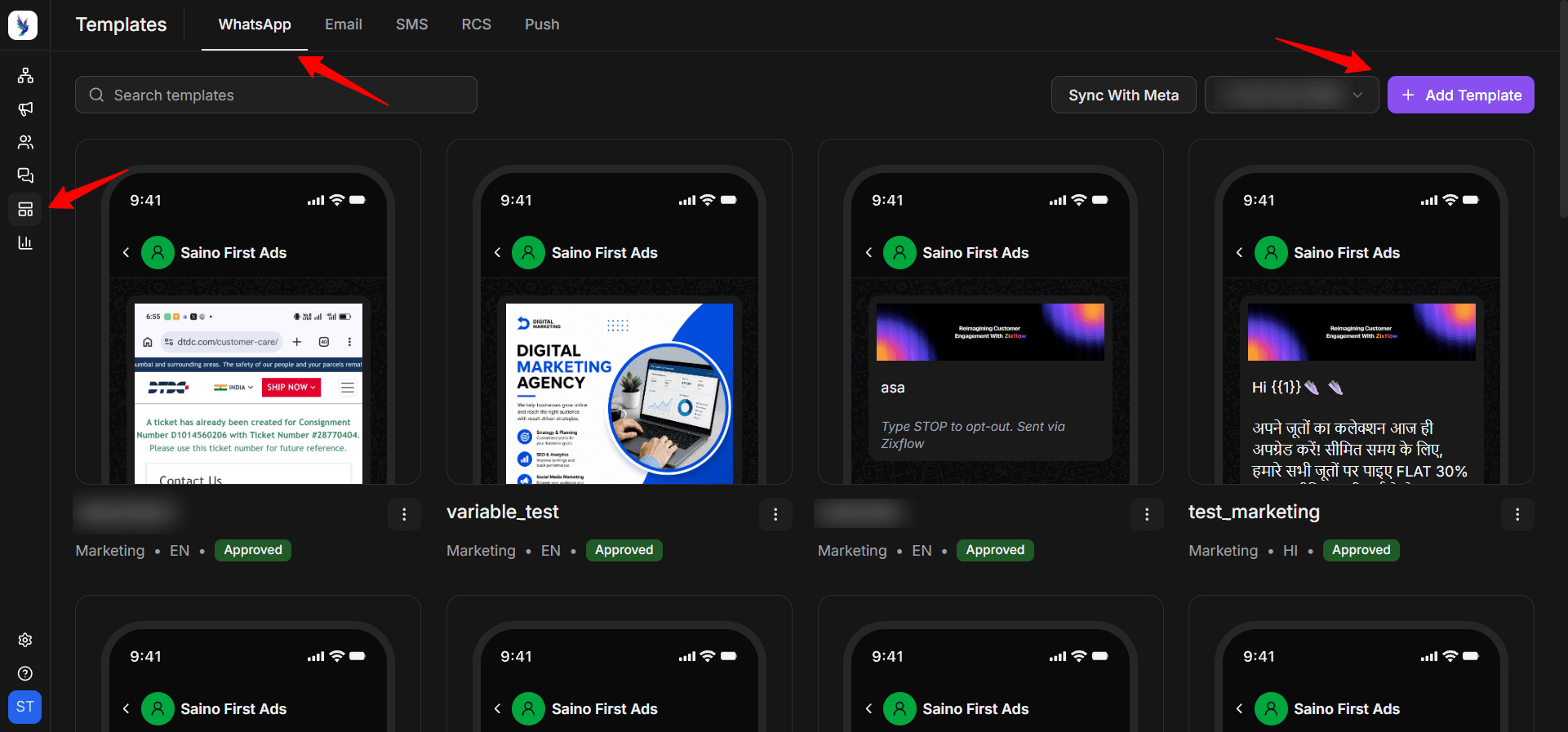
Log in to your Zixflow account, and navigate to the Template section and click the WhatsApp tab from the top menu.
Click the Add Template button to open different categories of WhatsApp templates, including marketing, carousels, utility, and authentication. All the messaging categories in Zixflow allow you to add interactive elements to them, except for the authentication messages.
Add the buttons your template needs in the corresponding field. Keep labels short and distinct, and limit yourself to the two or three actions that matter.
Once you have filled in all the details in the template builder, click Create to submit the template to Meta. Zixflow tracks the approval status and notifies you the moment Meta approves or rejects it. If it’s rejected, check the category and wording first, then resubmit.
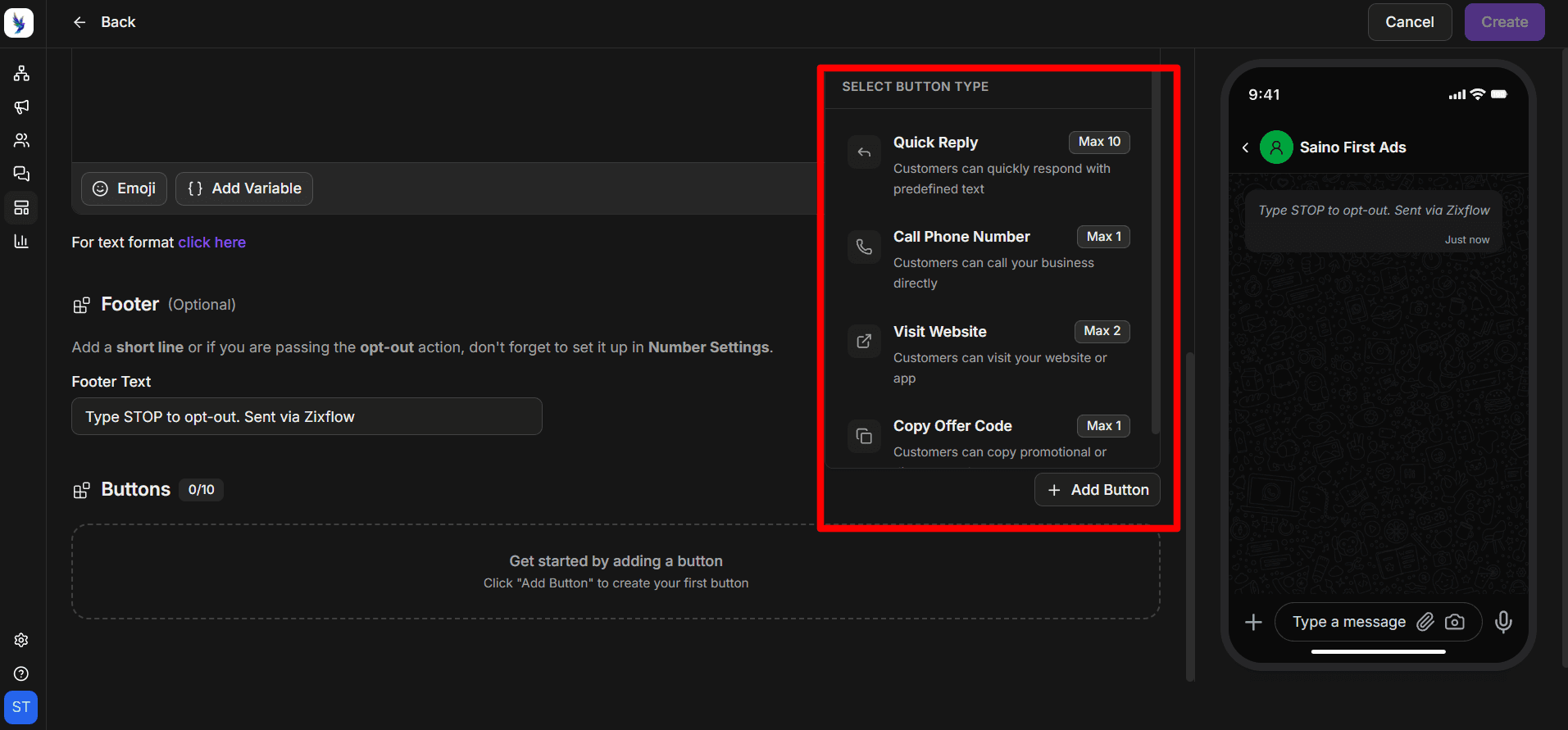
Note: When deciding on a campaign category, think about the primary objective for each message type. Pick Marketing for promotions, reminders, and retargeting. Pick Utility for order updates and other follow-ups tied to a specific transaction. Templates that mix both are treated as marketing, so keep promotions out of utility messages.
Why do WhatsApp interactive messages matter for your business?
WhatsApp interactive messages don't change what you can say to a customer. They change how easily the customer can answer, and that's where most of the value sits:
Lower friction for customers
Customers respond with one tap instead of composing a reply. Typing on a phone is slower and more error-prone than tapping. Every extra step is a chance for someone to leave the chat. Reply buttons are predefined answers that users simply choose from, and that is the whole point of these types of messages.
Structured data for future interactions
Every button tap returns a unique identifier, so your system receives exact values instead of sentences to interpret. Meta's webhook reference shows that a button tap reports the button ID similarly, a list selection reports the row ID.
That lets you tag contacts and assign owners without keyword matching. It also lets you trigger follow-ups the same way. Cleaner inputs mean fewer misrouted chats and less manual sorting for your customer-facing teams.
Fewer dead-end conversations
A message with clear next steps is harder to ignore than an open question. Meta's message quality guidelines advise businesses to avoid open-ended welcome or introductory messages.
Quality is judged on how users interact with your brand, and that is through blocks, reports, and mutes. Buttons give every opening message a purpose. This way, they protect your number's quality rating while keeping chats moving.
Less repetitive support work
Lists and Flows can handle the first triage step. Agents can come after that to deal with exceptions rather than routine questions. When taps answer the opening questions, your team starts each chat with context already collected.
Over time, that frees capacity for the conversations that really need human supervision. Pairing the format with a shared team inbox keeps those handoffs clean.
Making WhatsApp interactive messages work for your business
Free-text conversations are slow to start and hard to steer. WhatsApp interactive messages exist to fix exactly that.
This guide covered the most-used WhatsApp interactive types that Meta supports and the limits that shape how you use them. It also covered the strategies for putting them to work, from routing the first message to measuring results.
If you take one thing away, let it be this, design the path before you design the message. Businesses that see results map the few things customers actually want and give each a clear tap. Only then do they choose the correct messaging format.
If you want a ready-to-use platform that lets you get started with WhatsApp outreach within hours, then Zixflow is the solution for business. You can set up buttons, lists, and automated follow-ups on an official WhatsApp Business Partner from one place.
See the platform in action with a 7-day free trial of Zixflow.
Frequently asked questions about WhatsApp interactive messages
What are WhatsApp interactive messages?
WhatsApp interactive messages are business messages with interactive elements, such as reply buttons, list menus, call-to-action link buttons, and WhatsApp Flows. Businesses send them through the WhatsApp Business Platform, typically as replies within an open 24-hour customer service window, which starts when a customer messages you.
How many buttons can a WhatsApp interactive message have?
Reply buttons allow up to three per message, with labels of up to 20 characters that must be unique. List messages show one menu button that opens up to 10 rows, in total, across all the sections.
What is the difference between reply buttons and list messages?
Reply buttons display up to three options directly beneath the message, so customers answer in one tap. List messages hide up to 10 options behind a single menu button. That costs one extra tap but fits far more choices. Use buttons for quick decisions and lists for categories or help topics.
Can you send WhatsApp interactive messages outside the 24-hour window?
No. Interactive messages are free-form service messages, so they can only be sent while a customer service window is open. The window starts when a customer messages you and resets to 24 hours each time they write again. Once it closes, Meta only allows pre-approved template messages. Those templates can include quick-reply or URL buttons.
How do you send WhatsApp interactive messages?
You send them through the WhatsApp Business Platform. Developers call the Messages API, the software connection for sending messages, with the message type set to interactive. They then define the body, the action block, and an optional header and footer.
Non-technical teams can build the same messages in a no-code builder inside a WhatsApp messaging platform, like Zixflow. Each tap then arrives through a webhook with an automatic alert sent to your system.
What are WhatsApp Flows, and how are they different from buttons?
WhatsApp Flows are structured, multi-step experiences with dropdown menus and input fields that run inside the chat. Buttons and lists collect a single choice per message, but a Flow can gather several inputs in one sitting.
Do WhatsApp interactive messages cost extra?
Interactive messages sent inside an open customer service window are usually free under its service pricing category. Template messages that carry buttons are billed under their own categories, for instance, marketing or utility.
When writing this article in November 2026, Meta charges on a per-message basis instead of the previously used per-conversation pricing structure. So check Meta's current pricing page and your provider's rate card before coming up with your WhatsApp marketing budget for this quarter.