SS-BP-0654 How to Switch WhatsApp API Providers Safely in 2026
Switch WhatsApp API providers safely by planning the migration and moving your business messaging setup without disrupting ongoing communication.
 by Sahil Tyagi
Switching WhatsApp API providers no longer means migrating your phone number. Since Meta's 2026 account model update, you share your existing WhatsApp account with the new provider, and your number stays with your business.
- What stays with you: Phone number, display name, quality rating, and messaging limits
- What doesn't move on its own: Message templates, inbox history, chatbot flows, and integrations
- Templates: Copy them with Meta's Template Migration API or recreate them, and expect 2 to 4 weeks for quality ratings to rebuild
- How to switch: Audit your setup, export your data, share your WhatsApp account with the new provider, migrate templates, then remove the old provider
For most businesses, WhatsApp isn't just another channel anymore. It handles order updates and support chats. It sends OTPs and marketing campaigns. And for businesses using the WhatsApp Business API, all of it runs through a provider.
So when that provider stops being the right fit, switching can feel risky. Until recently, it meant migrating your phone number between accounts. You often had to disable two-step verification first. And then you'd hope your templates came through intact. Many businesses stayed with a provider they'd outgrown simply because moving felt like too much.
That changed in 2026.
Meta's new WhatsApp account model lets you add a new provider to your existing number without moving it at all. But a few things still don't carry over on their own, and that's where most switches go wrong.
That's why in this guide, I'll explain what's changed and what moves with you. Then I'll walk you through how to switch WhatsApp API providers step by step. So, let's get into it.
Understanding what migrates when you switch your WhatsApp API providers
Your WhatsApp setup is made up of several pieces. They are the phone number and its display name. There’s your approved WhatsApp message templates and everything your provider built on top, like your inbox and chatbots.
When you switch, some of these pieces stay exactly where they are. Others need to be moved or rebuilt. Knowing which is which is the key to a smooth switch. Here's a quick overview:
| What you have | Where it lives now | What happens when you switch |
|---|---|---|
| Phone number and display name | Your WhatsApp account | Stays with you |
| Quality rating and messaging limits | Your phone number and business portfolio | Stay with you |
| Message templates | The provider's Messaging account | Need to be migrated or recreated |
| Billing | The provider's Messaging account | Moves to the new provider's Messaging account |
| Inbox history, flows, and integrations | Your old provider's platform | Need to be exported and rebuilt |
Meta's new WhatsApp account model
Now you might ask, why is switching easier now? The answer is a big change Meta made to how WhatsApp Business accounts are structured.
One account became two
Until 2026, a single WhatsApp Business Account (WABA) held everything. Your numbers, templates, and billing all sat in one place. That's why changing providers meant moving your number from one account to another.
Under the new model, that account has been split in two. Meta explains that there's now a WhatsApp account that holds your phone number, business profile, and catalogs. And there's a separate Messaging account that holds your templates, billing, and webhook settings.
The rollout started on September 23, 2026, and was set to reach all businesses by mid-October 2026. Meta moved existing accounts over automatically, so you didn't need to do anything to get the new structure.
You share your number instead of moving it
Here's the part that matters most for switching. Your WhatsApp account, the one holding your number, is always owned by your business. You can share it with more than one provider at the same time.
Each provider then gets its own Messaging account for its templates and billing. Meta says that because of this, phone number migration between partners is no longer supported in the new model. It simply isn't needed. Your number stays put, and your customers' conversations aren't interrupted.
Some things stay exactly the same
Meta has kept a lot of the platform unchanged. Your display name, quality rating, and messaging limits stay as they are. Your business verification stays at the business portfolio level.
There's one detail worth knowing, though. If two providers share your number, they also share its capacity. Throughput stays at the phone number level, and messaging limits stay at the business portfolio level. So if both providers send big campaigns at once, they're drawing from the same pool.
What carries over when you switch and what doesn't
When it comes to switching, the surprises usually come from the things people assume will carry over. Here's a clear look at each one.
Your phone number and display name stay with you
Your business phone number lives in your WhatsApp account. When you add a new provider, they simply get access to it. The number doesn't move so there's no downtime in your WhatsApp outreach.
Your display name stays the same too. Meta also notes that partners can change the display name without knowing your two-step verification PIN. So your new provider can help you update it later if you need to.
Your quality rating and messaging limits stay too
Your phone number's quality rating stays attached to the number. So if you've built a good track record, you keep it.
Your messaging limits also stay, since they sit at the business portfolio level. That means a new provider doesn't start you from scratch on how many customers you can message each day.
Your templates don't move on their own
This is the part that catches most businesses off guard. Templates belong to the Messaging account they were created in. Since every provider gets its own Messaging account, your new provider won't automatically see your old templates.
You'll need to either copy them over or recreate them. Meta offers a Template Migration API for copying, but it has limits that we'll cover in the steps below. Templates that can't be copied must be submitted for approval again.
Template quality and limits start from a baseline
Even when templates are copied successfully, they don't bring their history with them. Meta says that when templates move to a new Messaging account, their quality ratings and messaging tier reset to baseline. It takes roughly two to four weeks to ramp back up.
This matters most for marketing teams. If you plan a big campaign for the week you switch, your copied templates may not perform at their usual level yet.
Your inbox history and automations stay with the old provider
Your customers will still see their full chat with you in their WhatsApp app because the number hasn't changed. But the tools your old provider gave you are a different story.
Your shared inbox history lives on your old provider's platform. So do your chatbot flows, contact tags, and reports. None of it moves to the new one automatically. You'll need to export what you want to keep and rebuild your flows on the new platform.
How to switch WhatsApp API providers?
After understanding what moves and what doesn't, now it's time to plan the switch itself. The six steps below are in the order most businesses should follow. Each one protects you from a common mistake.
Audit your current WhatsApp setup
The first step is to write down everything your current setup includes. You can't move what you don't know you have.
This matters because WhatsApp setups grow quietly over time. For example, a template gets added for a one-off campaign or a webhook gets connected to a tool nobody remembers. If you miss any of these, something will break after the switch, and you might not notice until a customer complains.
The best way to do this is to list every business phone number you use on WhatsApp. Then list every approved template. Note its category, its language, and how often you use it.
Next, note every integration your provider connects to. Finally, list every automated flow and chatbot, and record what triggers each one. Ask each team that uses WhatsApp to review the list because support and marketing often know about flows the other team has never seen.
While you're auditing, check who owns what. Open Meta Business Suite and look at your WhatsApp Accounts and Messaging Accounts tabs. Your WhatsApp account should belong to your own business portfolio. Your Messaging account may belong to you or to your provider.
This detail matters later, because Meta only allows templates to be copied between Messaging accounts owned by the same business.
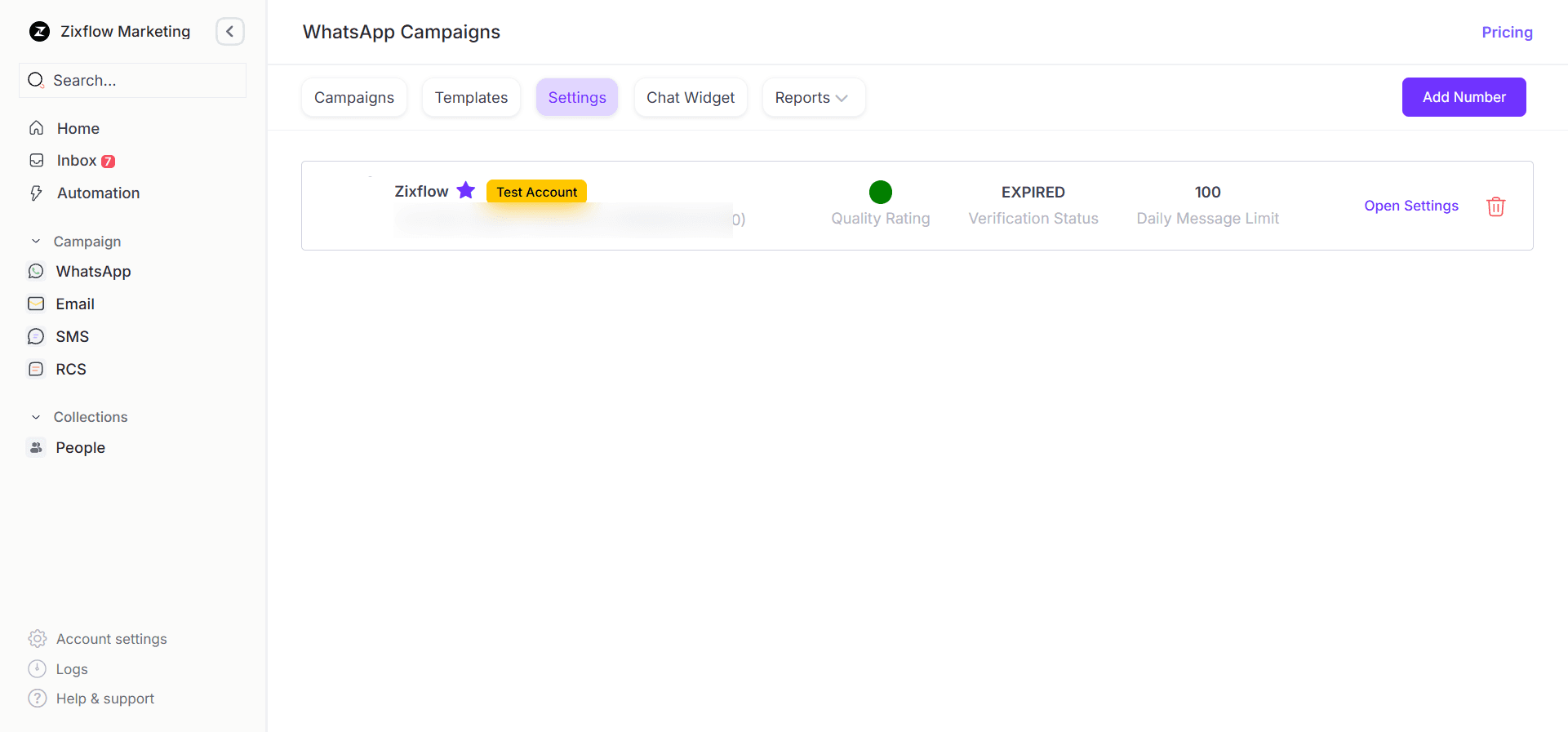
Also check whether your provider has attached its own credit line to your Messaging account. Meta notes that a client-owned Messaging account with a partner's credit line can't be shared with another partner. Knowing this early helps you plan your billing.
Once you've finished your audit, you'll have a clear checklist. This list becomes your plan for the rest of the switch, and it makes the final cutover far less stressful.
Export your data from the old provider
The next step is to save everything your old provider holds that Meta won't move for you. Do this before you change anything else.
The most practical way to do this is to go through your audit list and export each type of data one by one. Start with your contacts, including any custom fields and tags you use to segment them. Then export your opt-in records, showing when and how each customer agreed to hear from you on WhatsApp.
Opt-in records deserve special care. Meta requires you to get opt-in before sending proactive messages, and your new provider will need to know who has agreed to what.
Next, export your conversation history if your provider allows it. Finally, save copies of your reports and campaign results, so you have a baseline to compare against later. Store all of these files in one shared folder that your whole team can reach.
Ask your old provider about their data deletion policy, too. Find out how long they keep your data after you leave. This tells you how much time you have if you need to go back for something you missed. If they only keep it for a short time, finish your exports before you start onboarding with the new provider.
Share your WhatsApp account with the new provider
Now it's time to connect your number to the new provider. Under the new model, this is far simpler than it used to be.
Start with your new provider's onboarding flow, which uses Meta's Embedded Signup. You'll sign in with your Facebook account and pick your existing business portfolio. Then you'll enter your existing business phone number and select your existing WhatsApp account.
When you finish, Meta automatically creates a new Messaging account for your new provider. You won't need to re-register your number or reset your PIN. Meta notes that re-registering an already registered number succeeds without resetting the PIN.
On top of that, Meta is phasing out the six-digit two-step verification PIN for eligible Cloud API numbers. So the PIN step that used to slow down switches may not apply to you at all.
Once onboarding is done, check Meta Business Suite again. Under Messaging Accounts, you should see a separate account for your new provider. Under WhatsApp Accounts, you should see your number shared with both providers.
Note: Don't remove your old provider yet. Having both connected to your number gives you time to set up the new platform properly before you move any live traffic.
Migrate or recreate your message templates
With your new provider connected, the next step is to get your templates into their Messaging account. Without approved templates, your new provider can't start conversations or send notifications.
Templates are tied to the Messaging account they were created in, and your new provider's Messaging account starts empty. Until your templates are there, your campaigns can only run through your old provider.
Your new provider can move them for you with Meta's Template Migration API. However, it comes with two limits:
- Both Messaging accounts must be owned by the same Meta business
- Only approved templates with a green or unknown quality rating can be copied
Templates are copied in batches of up to 500 at a time.
After the migration runs, the API returns a list of templates that were copied and a list that failed, along with a reason for each failure. Common reasons include an incorrect category or a formatting error. You'll need to fix and resubmit these message templates yourself.
Finally, plan for the ramp-up period. Copied templates start with a reset quality rating and messaging tier, and they need about 2 to 4 weeks to build back up. Watch the quality rating on each template during this time and pause any that start to slip.
Remove the old provider
The final step is to move all remaining traffic to your new provider and remove the old one. Only do this once everything on your checklist works on the new platform.
Leaving an old provider connected forever creates risk because they still have access to your number. Meta notes that any partner with access can deregister a phone number, which would take your WhatsApp offline. Removing access you no longer need keeps your number safe.
On the cutover date, move every remaining flow, template, and notification to the new provider. Then remove your old provider's access to your WhatsApp account in Meta Business Suite. Meta sends the old provider a notification when they're removed from a Messaging account.
Before you remove them, ask your old provider to confirm they won't deregister your number. It's a simple step, but it protects you from an accidental outage.
In addition to that, cancel any remaining subscription and check that their final invoice matches the messages they actually sent. Then update your internal documentation so your team knows which platform to log into from now on.
After the cutover, watch your results closely for the next few weeks. Track delivery rates, template quality, and response times, and compare them to the baseline reports you exported earlier. If anything drops, you'll spot it early and can fix it before customers notice.
Keep your exported data for a few months too, in case you need to check an old conversation or opt-in record.
Planning a move to a new WhatsApp provider?
Talk to our team about moving your WhatsApp templates, flows, and integrations to Zixflow
Book a DemoCommon mistakes to avoid when switching providers
Even with the new model, a few mistakes come up again and again. Here's what to watch for:
Removing the old provider too early
It's tempting to cut ties as soon as the new provider is connected. However, if your templates aren't approved yet, your WhatsApp messages will stop. Keep both providers connected until every critical message runs smoothly on the new platform.
Forgetting about opt-in records
Your opt-in history is easy to overlook because it lives quietly in the background. If you don't export it, you may not be able to prove that customers agreed to hear from you. Make your WhatsApp opt-in records one of the first things you save.
Launching big campaigns on reset templates
Copied templates start with a reset quality rating. Sending a large marketing campaign through them in the first week can lead to poor results or blocks. Warm them up with smaller sends first.
Running two inboxes without a plan
When both providers are connected, customer replies can end up in two places. If nobody owns which inbox is live, customers wait longer for answers. Decide on one main inbox before you move any traffic.
Switching WhatsApp API providers with confidence
Switching providers used to mean migrating your number and hoping nothing broke. With Meta's new account model, your number stays with you, and you simply share it with the provider you want to work with.
If you take away one thing, let it be this, the number is the easy part now. The templates and integrations are where the real work lies. Plan for them early, and give your copied templates time to rebuild their quality before you lean on them for big campaigns.
A good next step is to run the audit from the first step this week. Even if you're not ready to switch yet, a clear list of what you have will make the move much easier when the time comes.
If WhatsApp is one of several channels you run alongside SMS, RCS, and email, it helps to land on a platform that handles all of them together. And that's exactly what Zixflow is built for.
Talk to our experts to see how Zixflow works when you're planning your next move.
Frequently asked questions about switching WhatsApp API providers
Can I switch WhatsApp API providers without losing my phone number?
Yes. Under Meta's new account model, rolled out from September 2026, your phone number lives in a WhatsApp account that your business owns. You share that account with your new provider instead of moving the number, so your number, display name, and quality rating stay the same.
Will my WhatsApp templates transfer to a new provider?
Not automatically. Templates belong to the Messaging account they were created in, and each provider gets its own Messaging account.
Your new provider can copy them using Meta's Template Migration API if both accounts are owned by the same business. Only approved templates with a green or unknown quality rating can be copied, and the rest must be recreated and resubmitted.
How long does it take to switch WhatsApp API providers?
Connecting your number to a new provider is usually quick, since the number doesn't move. Getting templates approved and integrations rebuilt takes longer, often one to a few weeks depending on how complex your setup is. Copied templates also need about 2 to 4 weeks to rebuild their quality ratings, so plan a gradual move.
Can I use two WhatsApp API providers on the same number?
Yes. You can share your WhatsApp account with more than one provider at the same time, and each one gets its own Messaging account for templates and billing. Keep in mind that both providers share your number's throughput and your business portfolio's messaging limits, so coordinate large campaigns between them.
Do I need to disable two-step verification to switch providers?
Usually not anymore. Re-registering a number that's already registered succeeds without resetting the PIN, and Meta is phasing out the six-digit PIN for eligible Cloud API numbers. If your number isn't eligible yet, you may still see the two-step verification tab in WhatsApp Manager, so check with your new provider.
Will my green tick or quality rating reset when I switch?
No. Your phone number's quality rating stays attached to the number, and your business verification stays at the business portfolio level. Since the number never moves, no migration step could affect your green tick. Only your copied templates' ratings reset, and they take about 2 to 4 weeks to build back up.